Reports
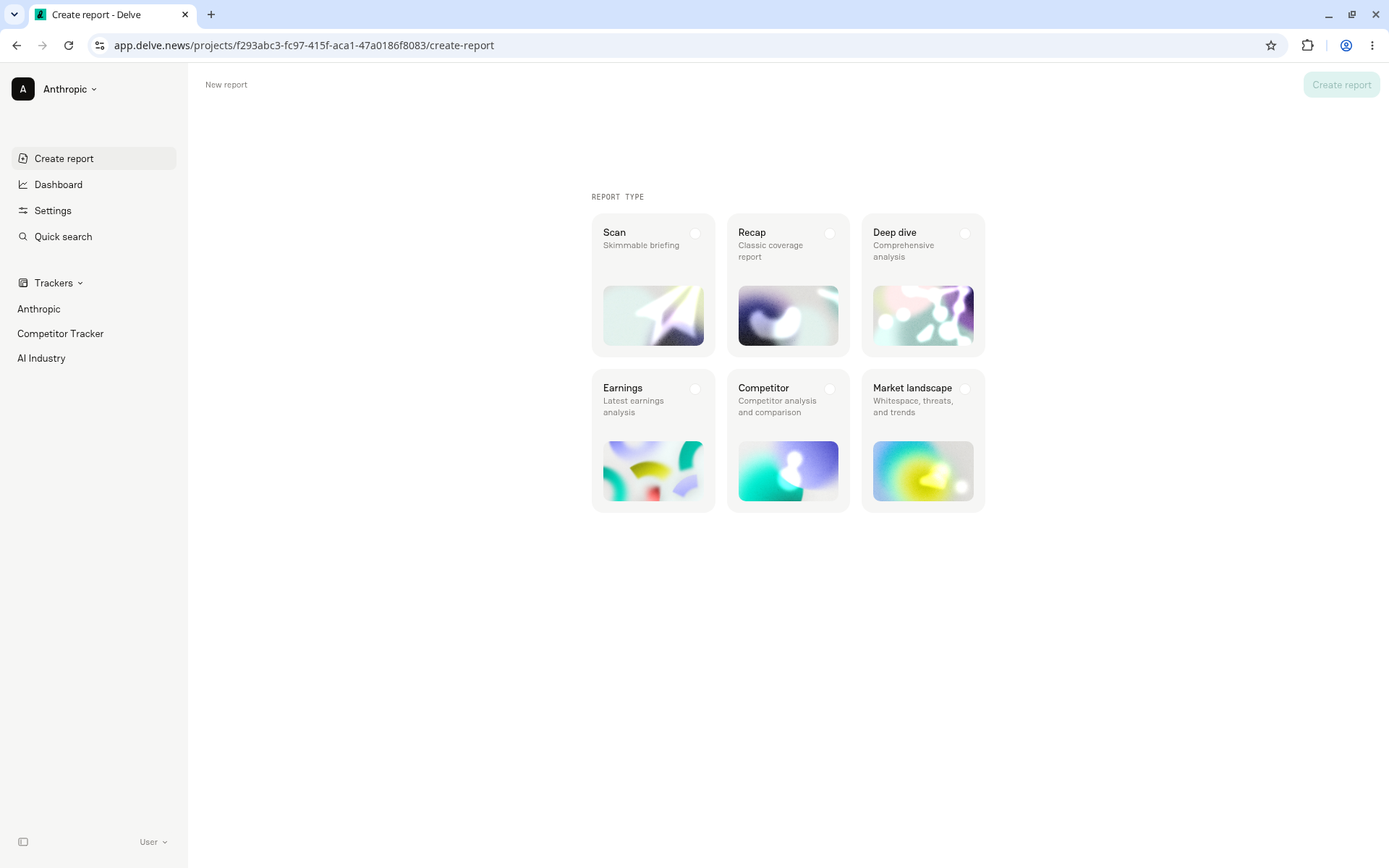
Reports turn your tracked coverage into written deliverables, from daily news briefings to event recaps and long-term strategic analysis. Delve offers six report types, and you create all of them from one place: Create report at the top of the sidebar.
On the Create report page you choose a report type, set the date range and trackers, filter and review the coverage, and customize how the report is written. To explore your coverage data or share a live view, see Dashboard.
How to Access Reports
Click Create report at the top of the sidebar. This is the single entry point for all report types.
Important: The Dashboard does not have a Create report button anymore. To create a report, use Create report in the sidebar. See Creating Reports.
Creating Reports
Delve offers six report types designed for different communications workflows — from daily news monitoring to event recaps and long-term strategic analysis.
While all reports begin from the same place, each report is optimized for a different use case.
To create a report:
Click Create report at the top of the sidebar
Select a report type
Apply filters
Under Sources, choose how coverage should be listed at the end of the report with Links (or choose None):
Short → Publication with headline + link only
Standard → Includes readership and author with article summary
Detailed → Includes full metadata, sentiment, topics, messages, quotes, etc.
Click Create report
You can also filter the coverage in a report using the full range of filters that are available in Delve, directly on the Create report page.
Reports typically generate in under a minute and always open in a new tab, allowing you to continue working while they're processing.
On the Create report page you can:
Choose any of the six report types
Set the date range the report covers
Turn individual trackers on or off for the report
Filter the coverage that goes into the report, with a live item count
Review the full list of coverage before you generate the report
Exclude individual articles without changing your settings
The item count, View coverage, and Create report stay at the top right of the page while you configure the report.
Important: Filters applied on the Dashboard don't carry over to the Create report page. The Create report page always starts fresh, so add the filters you need with Add filter.
Create a report
Click Create report at the top of the sidebar.
Under Report type, select one of the six report cards: Scan (Skimmable briefing), Recap (Classic coverage report), Deep dive (Comprehensive analysis), Earnings (Latest earnings analysis), Competitor (Competitor analysis and comparison), or Market landscape (Whitespace, threats, and trends). The Create report button becomes available once a report type is selected.
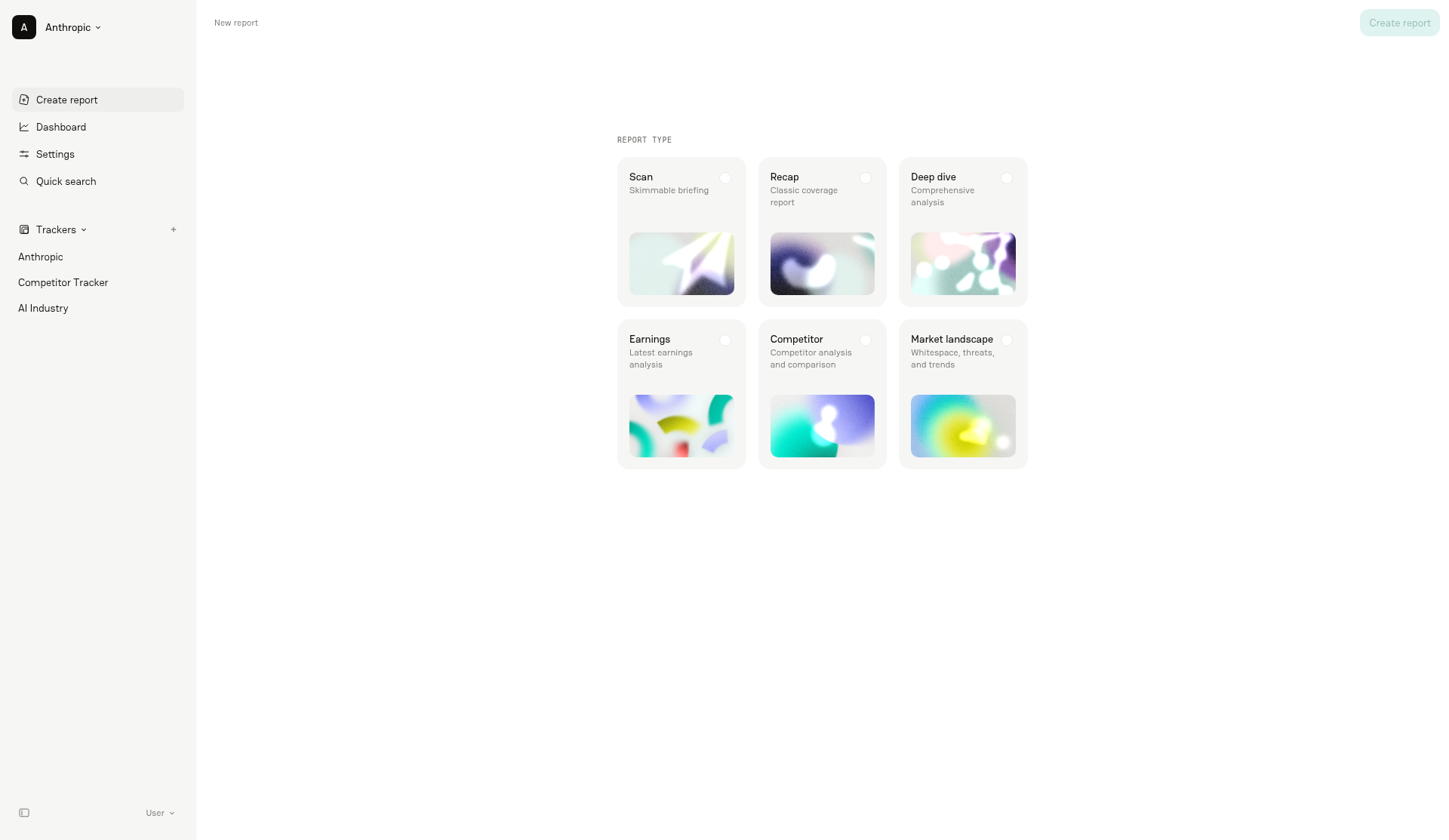
Under Window, set the Date range for the report (for example, September 26 → Now).
Under Trackers, turn each tracker on or off. All trackers are on by default, and only trackers that are on feed coverage into the report.
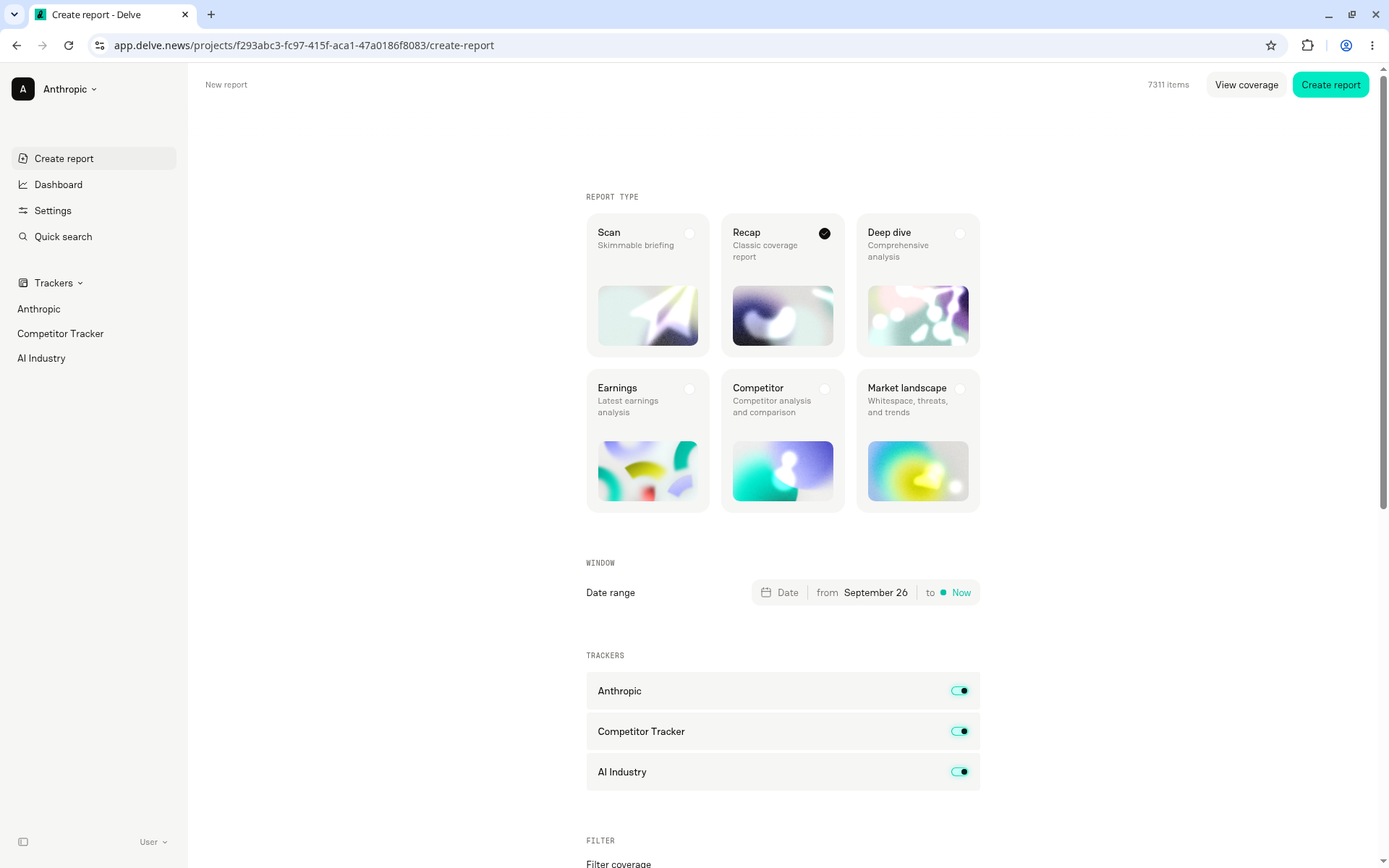
(Optional) Under Filter, click Add filter and choose a filter, such as List, Key message, Topic, Source, Label, Article type, Original language, Country, Theme, Readership, Reach, Sentiment, Title, or Media type. Only coverage that matches your filters is included, and the item count at the top of the page updates as you add filters.
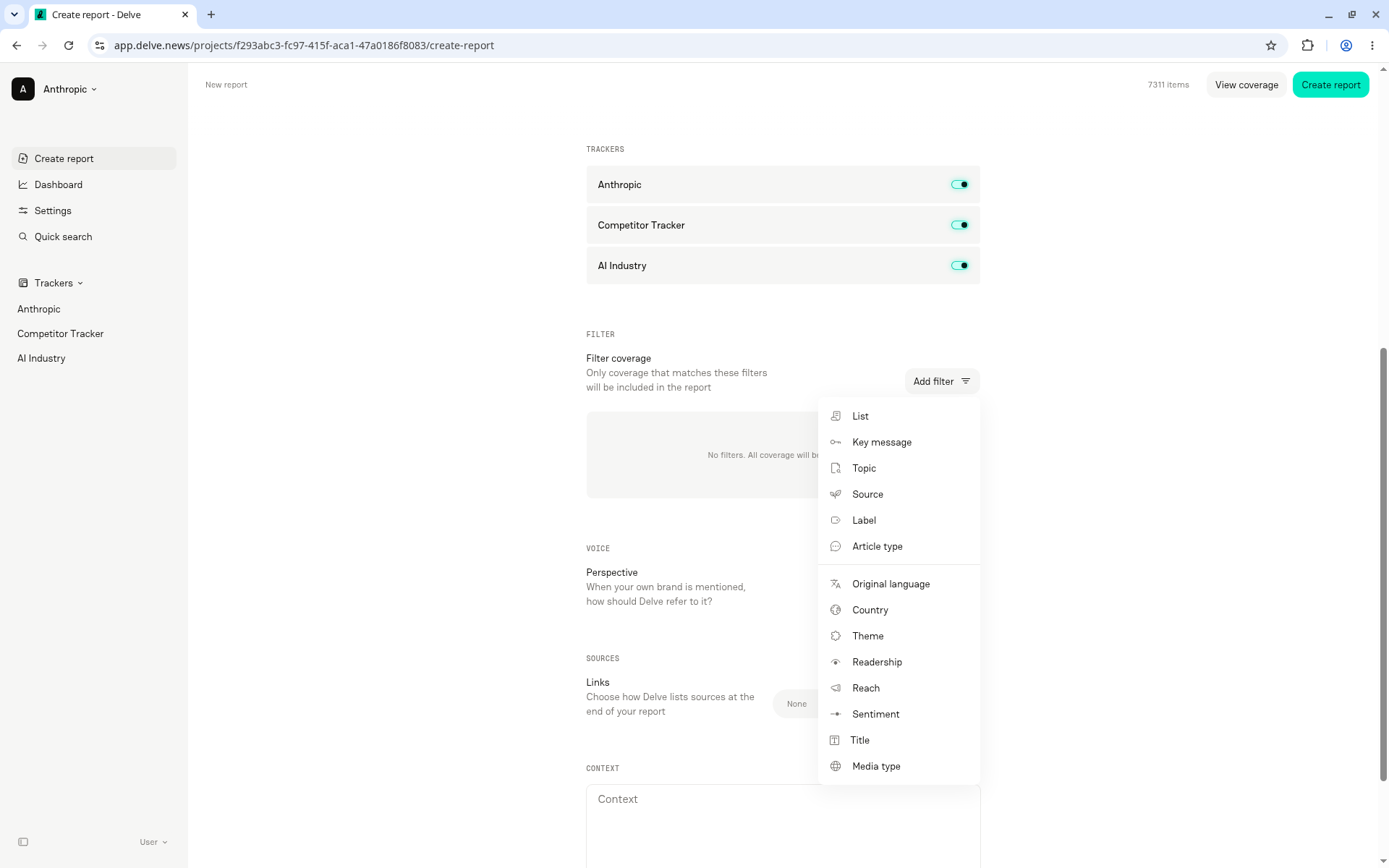
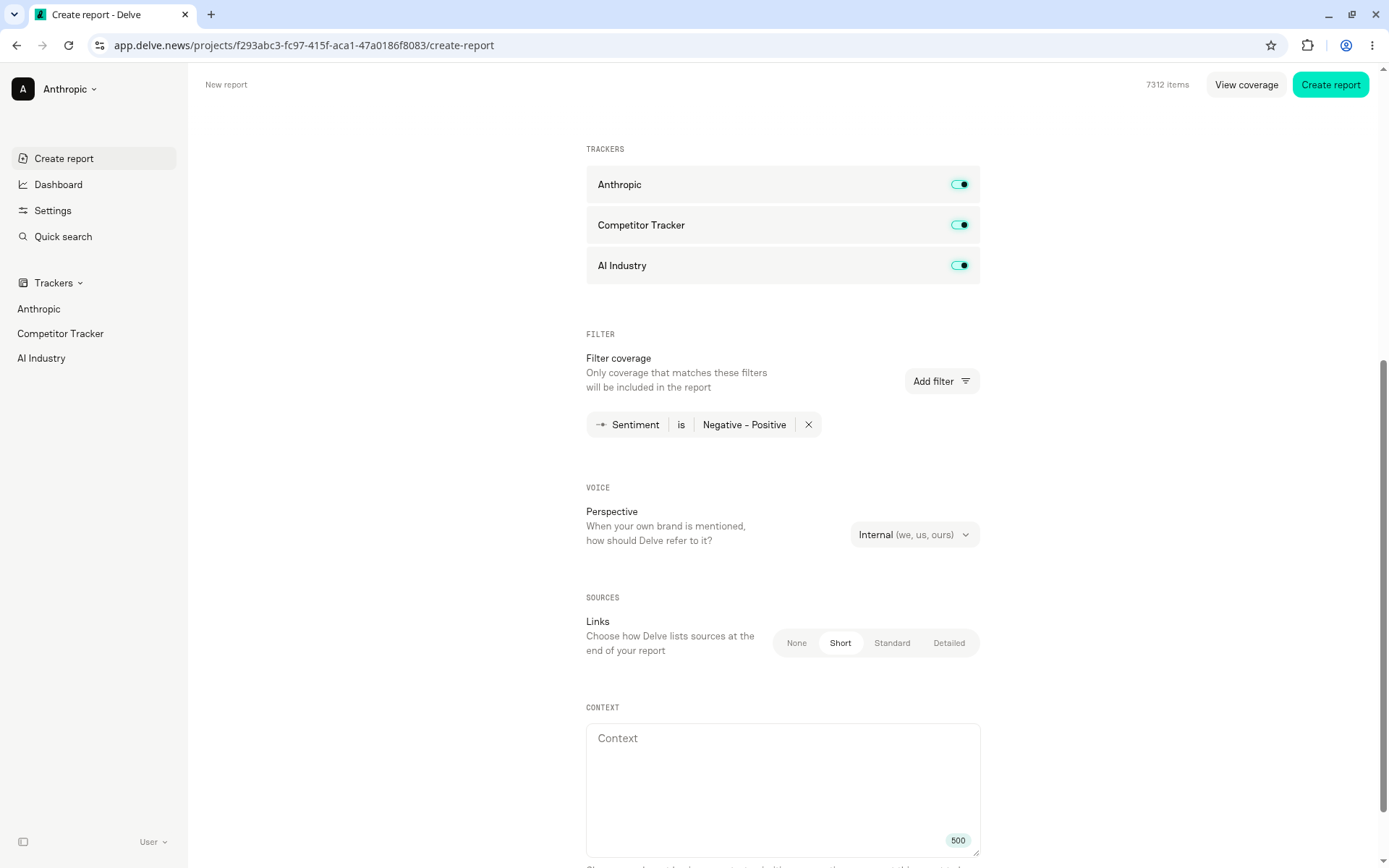
Under Voice, choose a Perspective: Internal (we, us, ours) (default) or External (brand name, it, its).
Under Sources, choose how sources are listed at the end of the report with Links: None, Short (default), Standard, or Detailed.
(Optional) Under Context, describe any business context, priorities, or questions the report should keep in mind (up to 500 characters). Keep in mind that this field won't take into account any formatting requests.
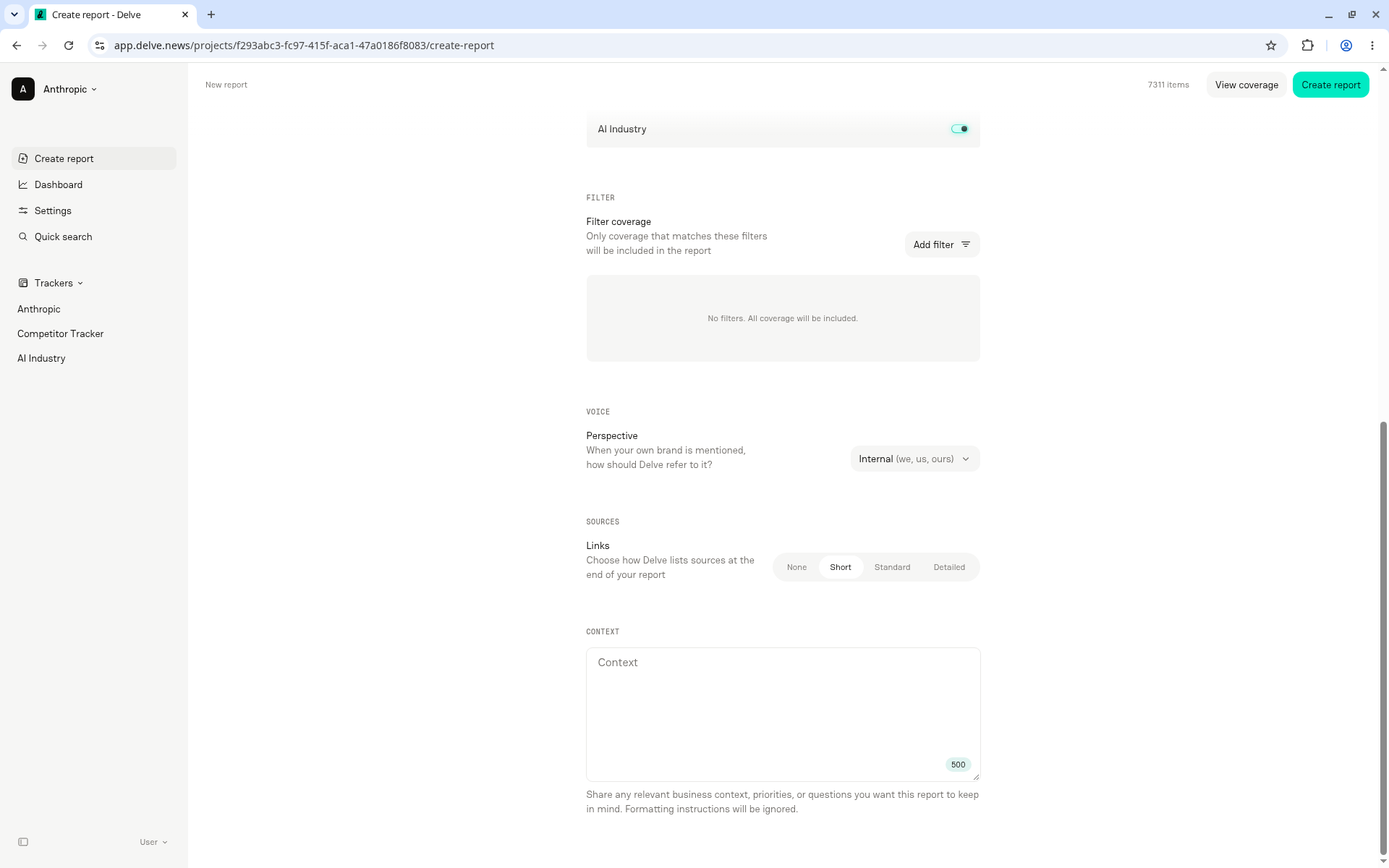
(Optional) Click View coverage to review the exact articles in the report and exclude any you don't want. See Review and exclude coverage.
Click Create report. You can click it at the top of the Create report page or from the coverage list.
Reports typically generate in under a minute. The report will generate in a new tab, so you can continue working in Delve.
Share a finished report
Reports don't have a Share button. To share a finished report:
Click Copy to copy the report, then paste it into a document, email, or message.
Click Download as Markdown to download the report as a Markdown file.
To share a live view of your coverage data instead, use Share on the Dashboard. See Sharing Dashboards.
Review and exclude coverage
The coverage list shows every article within the report's scope based on your current settings. Use it to check the data before the report is generated.
To review coverage:
On the Create report page, click View coverage. The coverage list opens over the page.
Click any article to open its details in the panel on the right. The first article is selected automatically.
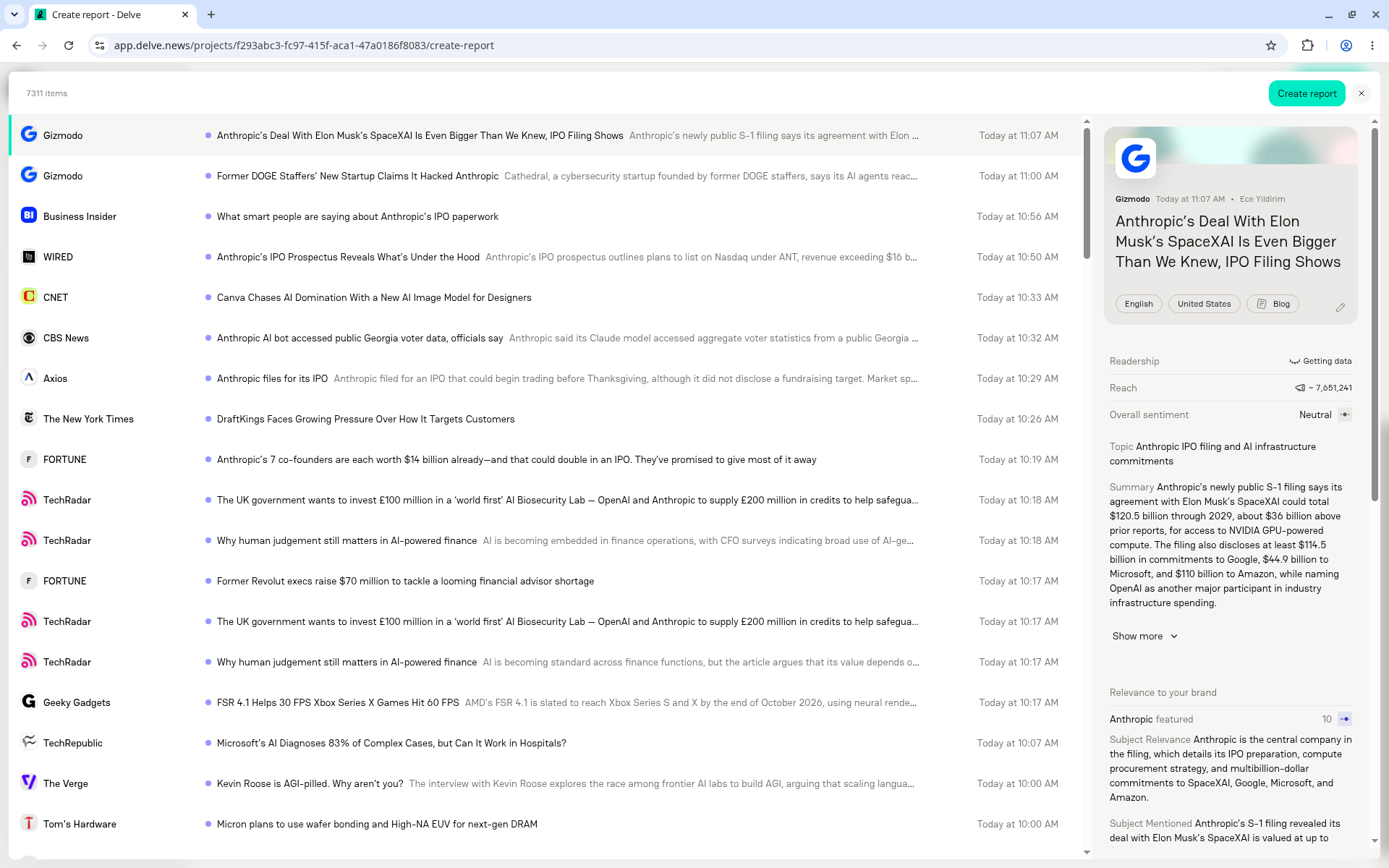
To exclude an article:
Hover over the article's source logo to reveal the Exclude control (an X).
Click Exclude. The article is dimmed and will not be included in the report. The control changes to Include, so you can add the article back.
The top of the list shows the number of items and how many you've excluded (for example, 7020 items · 1 excluded).
To clear all exclusions: Click Reset next to the excluded count.
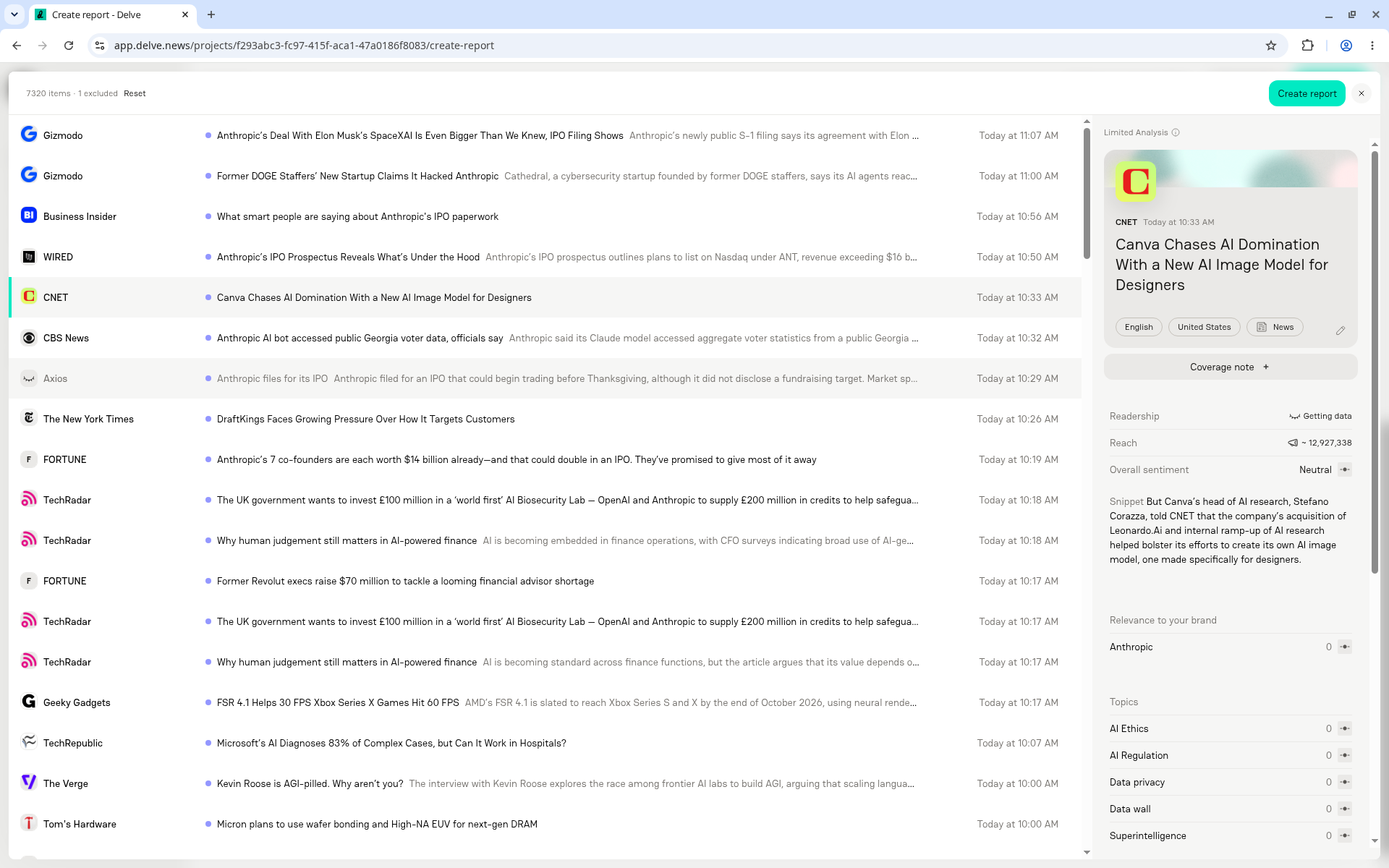
Important: Excluding articles does not change your report settings or filters. Exclusions are a fine-tuning layer on top of your settings and apply only to the report you're creating. They aren't saved to your trackers or carried into future reports. If you update your report settings after excluding articles, you might see your excluded count go down if any of those articles are no longer in the scope of the report.
Customizing Reports
When generating a report, you can do more than simply choose a report type.
Delve gives you three powerful ways to customize report output before it's generated: Perspective (under Voice), Links (under Sources), and Context.
Report Perspective
Perspective answers the question: When your own brand is mentioned, how should Delve refer to it? Set it under Voice on the Create report page: Internal (we, us, ours) (default) or External.
By default, reports can be written from an internal perspective, using language such as "we, us, our".
This is often helpful for internal teams and client-facing communications work.
However, if you'd prefer a more neutral, third-party viewpoint, you can switch the report perspective to External.
External reports replace first-person language with the company name and present findings from a more objective perspective.
This is especially useful when:
Sharing reports externally
Presenting findings to stakeholders
Creating competitive intelligence reports
Building executive briefings
Report Sources
Links (under Sources) controls how Delve lists sources at the end of your report. It does not change the length of the report itself.
None: no source list
Short (default): publication with headline and link
Standard: adds readership and author, with an article summary
Detailed: full metadata, such as sentiment, topics, messages, and quotes
Report Context
Report Context allows you to provide additional instructions before generating a report.
Think of it as briefing Delve on what matters most before it begins writing.
Enter it in the Context box at the bottom of the Create report page.
For example, you might include guidance such as:
Treat this as a Monday morning executive briefing
Focus on competitive positioning versus a specific competitor
Prioritize trust, enterprise adoption, or regulatory developments
Highlight strategic risks and opportunities
De-emphasize routine coverage unless it signals a larger trend
Important: Context is limited to 500 characters, and formatting instructions (for example, "use bullet points" or "add a table") are ignored. Use Context for business priorities and questions, not layout.
The more context you provide, the more tailored the report becomes.
This feature is particularly useful for:
Executive updates
Client reporting
Campaign recaps
Competitive analysis
Board or leadership presentations
Why This Matters
Two users can generate reports from the exact same dataset and receive very different outputs depending on the context they provide.
For example:
A communications leader might want:
Focus on narrative shifts and message pull-through.
While an executive team might want:
Focus on strategic risks, competitive dynamics, and business impact.
Report Context helps Delve prioritize the information most relevant to your audience.
Choosing the Right Report
Each report type appears as a card under Report type on the Create report page:
Scan: Skimmable briefing
Recap: Classic coverage report
Deep dive: Comprehensive analysis
Earnings: Latest earnings analysis
Competitor: Competitor analysis and comparison
Market landscape: Whitespace, threats, and trends
Scan Report
Think of Scan Reports as your daily briefing.
Scan Reports are designed to quickly surface the most important stories, developments, and narratives within a specific timeframe.
Best For
Daily monitoring
Executive briefings
Morning news summaries
Rapid situational awareness
What You'll See
A typical Scan Report includes:
An overview of the current news cycle
Key stories and developments
Major headlines and themes
Supporting coverage from additional outlets
Recap Report
Recap Reports help tell the story of a moment.
Rather than focusing on individual news events, Recap Reports identify broader narratives and summarize how coverage evolved during a launch, campaign, announcement, or event.
Best For
Product launches
Funding announcements
Campaign recaps
Event reporting
What You'll See
A typical Recap Report includes:
Executive summary
Key themes and narratives
Pull-through of key messages
Topic performance
Notable quotes
Coverage volume and performance metrics
Deep Dive Report
Deep Dive Reports are Delve's most comprehensive reporting format.
These reports are designed to uncover long-term trends, competitive shifts, sentiment changes, and strategic insights across larger coverage sets.
Best For
Monthly reporting
Quarterly business reviews
Executive reporting
Strategic communications planning
What You'll See
A typical Deep Dive Report includes:
Executive summary
Long-form narrative analysis
Competitive landscape insights
Sentiment analysis
Theme performance
Share of voice and share of mentions
Key messages
Strategic takeaways
Earnings Report
Earnings Reports are designed to help teams quickly understand how a company's earnings announcement was covered across the media landscape.
Whether you're reporting on your own company or monitoring a competitor, this report consolidates earnings-related coverage into a focused analysis.
Best For
Quarterly earnings reporting
Analyst and investor coverage reviews
Competitor earnings monitoring
Executive briefings
By default, Delve identifies earnings-related coverage using themes such as:
Earnings Announcement
Financial Results
You can also manually include articles by assigning them the Earnings Report article type.
What You'll See
A typical Earnings Report includes:
Executive summary
Key themes from earnings coverage
Analyst and executive quotes
Earnings-specific narratives
Coverage highlights
Competitor mentions (when applicable)
If you're analyzing a competitor's earnings coverage, Delve will also identify where your company was mentioned throughout the discussion.
Competitor Report
Competitor Reports help you understand how competitors are being covered, positioned, and discussed in the market.
These reports can be generated for a single competitor or as a comparison between two entities.
Best For
Competitive intelligence
Market positioning analysis
Executive briefings
Monitoring competitor announcements
Strategic planning
Report Types
Competitor Reports support three different formats:
Single Competitor
Focuses on one competitor's coverage and positioning.
Competitor vs Competitor
Compares two competitors head-to-head.
Competitor vs Subject
Compares a competitor directly against your company.
What You'll See
Competitor Reports may include:
Coverage comparisons
Positioning contrasts
Competitive dynamics
Narrative analysis
Key themes
Key quotes
Strategic implications
These reports provide a quick way to understand how competitors are performing without manually reviewing hundreds of articles.
Market Landscape Report
Market Landscape Reports provide a broader view of the conversations shaping your industry.
Rather than focusing on a single company, these reports analyze themes, trends, opportunities, and risks across your tracked coverage.
Best For
Strategic planning
Identifying emerging trends
Proactive media strategy
Market intelligence
Executive and leadership reporting
How It Works
Market Landscape Reports look across your coverage set and identify:
Emerging narratives
Accelerating themes
Coverage gaps
White space opportunities
Market risks
Strategic recommendations
What You'll See
A typical Market Landscape Report includes:
Key Themes
Major topics driving discussion in your market and whether those narratives are accelerating or remaining stable.
Coverage Gaps
Areas receiving little attention that may represent opportunities for future storytelling.
Narrative Tensions
Competing viewpoints or debates occurring within coverage.
White Space Opportunities
Topics and narratives where organizations have an opportunity to establish leadership.
Emerging Risks
Potential challenges, reputation risks, or market shifts that warrant attention.
Recommended Actions
Strategic suggestions based on the themes and trends identified in the report.
Why It Matters
Market Landscape Reports are designed to answer questions like:
What stories are shaping our industry?
What opportunities are we missing?
What risks are emerging?
Where should we focus next?
Rather than summarizing coverage, these reports help teams identify where the conversation is heading.
FAQs
1. What's the difference between the Dashboard and Reports?
The Dashboard is where you explore, analyze, and filter coverage data. Reports are generated outputs based on that data. Think of the Dashboard as your analytics workspace and Reports as the deliverables you create from it.
2. Can I generate a report from a filtered Dashboard view?
Yes, but Dashboard filters don't carry over automatically: the Create report page starts fresh, so apply the same filters there with Add filter. This allows you to create reports based on a very specific subset of coverage.
3. What is Report Context?
Report Context allows you to provide additional instructions before generating a report. For example, you can tell Delve to:
Focus on executive-level insights
Prioritize competitive dynamics
Highlight regulatory concerns
Surface emerging risks
Emphasize specific campaigns or announcements
The more context you provide, the more tailored the report becomes.
4. What is Report Perspective?
Report Perspective controls how the report is written. Internal Perspective may use language like "We, us, our." External Perspective uses the company name and presents findings from a more neutral, third-party point of view.
5. Does Report Context change the underlying data?
No. Report Context influences how the report is written and what information is emphasized. It does not change the coverage included in the report.
6. Can I share reports with people who don't have Delve access?
Yes. Reports don't have a Share button, but each finished report has Copy and Download as Markdown, so reports can be exported or copied into documents to share with stakeholders outside of Delve.
7. Which report type should I use?
A quick guide:
Scan Report
Daily monitoring
News briefings
Executive updates
Recap Report
Launches
Campaigns
Events
Deep Dive Report
Monthly reporting
Quarterly reviews
Strategic analysis
Earnings Report
Earnings announcements
Investor and analyst coverage
Competitor Report
Competitive intelligence
Positioning analysis
Market Landscape Report
Trend analysis
Opportunity identification
Strategic planning
8. Can I customize which articles appear in a report?
Yes. Filters applied on the Create report page determine which articles are included, and you can exclude individual articles in View coverage. Certain report types, such as Earnings Reports, can also be influenced by article type classifications.
9. How long does report generation take?
Most reports are generated within 1–2 minutes, depending on the amount of coverage and complexity of the report.
10. Where do I create a report?
Click Create report at the top of the sidebar. It's the single entry point for all six report types. The Dashboard and tracker views don't have a Create report button.
11. Do my Dashboard filters carry over to the Create report page?
No. Filters applied on the Dashboard don't carry over. The Create report page always starts fresh, so add the filters you need with Add filter.
12. What happens when I turn a tracker off?
That tracker does not feed any coverage into the report. All trackers are on by default. Turning a tracker off on the Create report page doesn't change the tracker itself.
13. Can I remove individual articles from a report?
Yes. Click View coverage, hover over an article's source logo, and click Exclude. Excluded articles are dimmed and left out of the report. Click Include to add one back, or Reset to add them all back.
14. Does excluding an article change my filters or settings?
No. Exclusions are a fine-tuning layer on top of your report settings. Your filters and other settings stay the same, and exclusions apply only to the report you're creating.
15. What do the Links options under Sources do?
They control how much detail Delve includes in the source list at the end of the report: None, Short (default), Standard, or Detailed. They don't change the length of the report itself.
16. Is there a limit on Report Context?
Yes. Context is limited to 500 characters, and formatting instructions are ignored.