Setting Up Connections
Delve becomes even more powerful when you connect it to the tools your team already uses. In Project Settings, you can connect Delve directly to ChatGPT and Claude to streamline analysis, and workflow.
Each integration has slightly different capabilities — from read-only access to full action-based automation — so it’s worth understanding how they work before turning everything on.
How to Access Connections
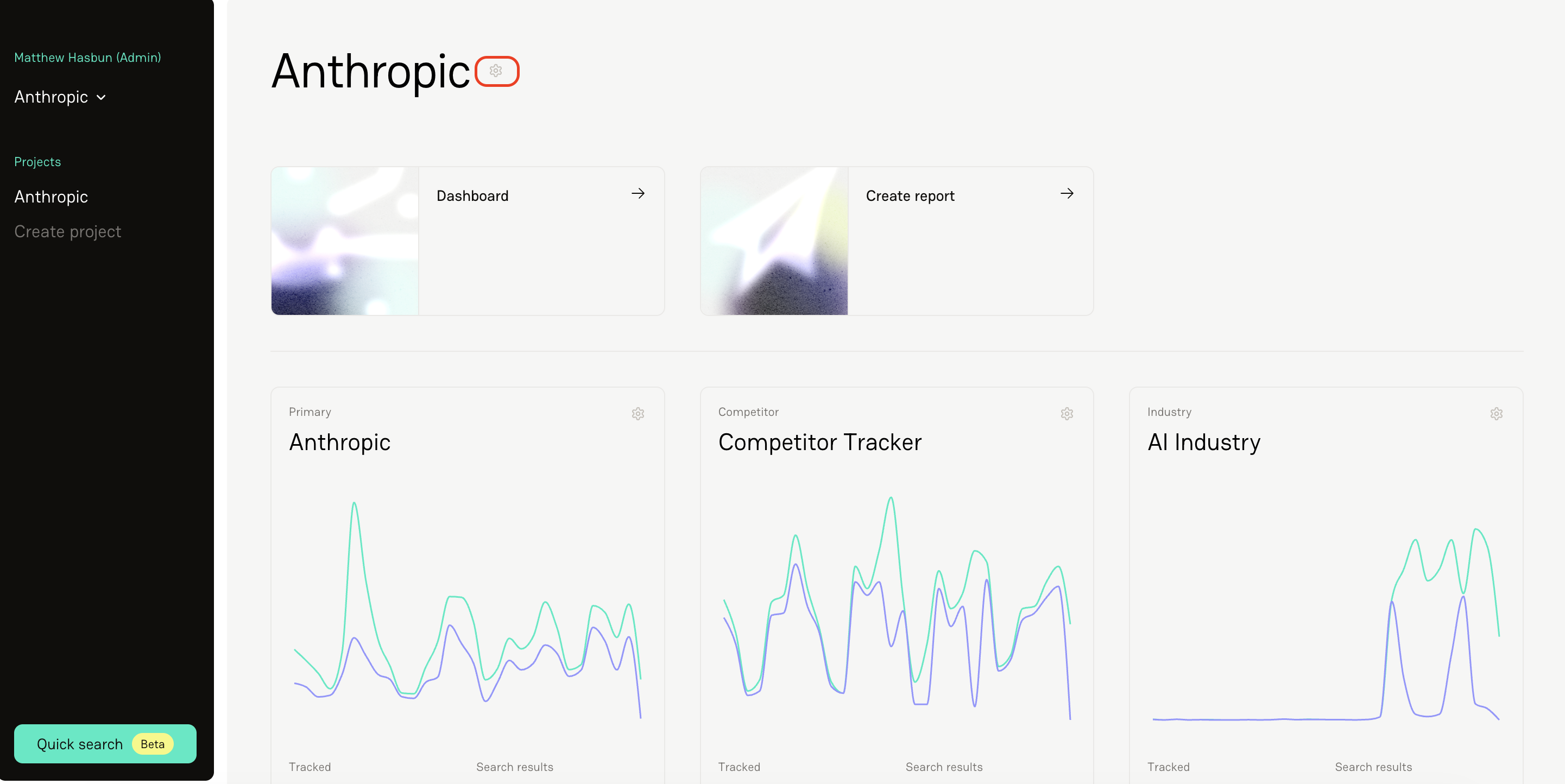
Click the gear icon to enter Project Settings.
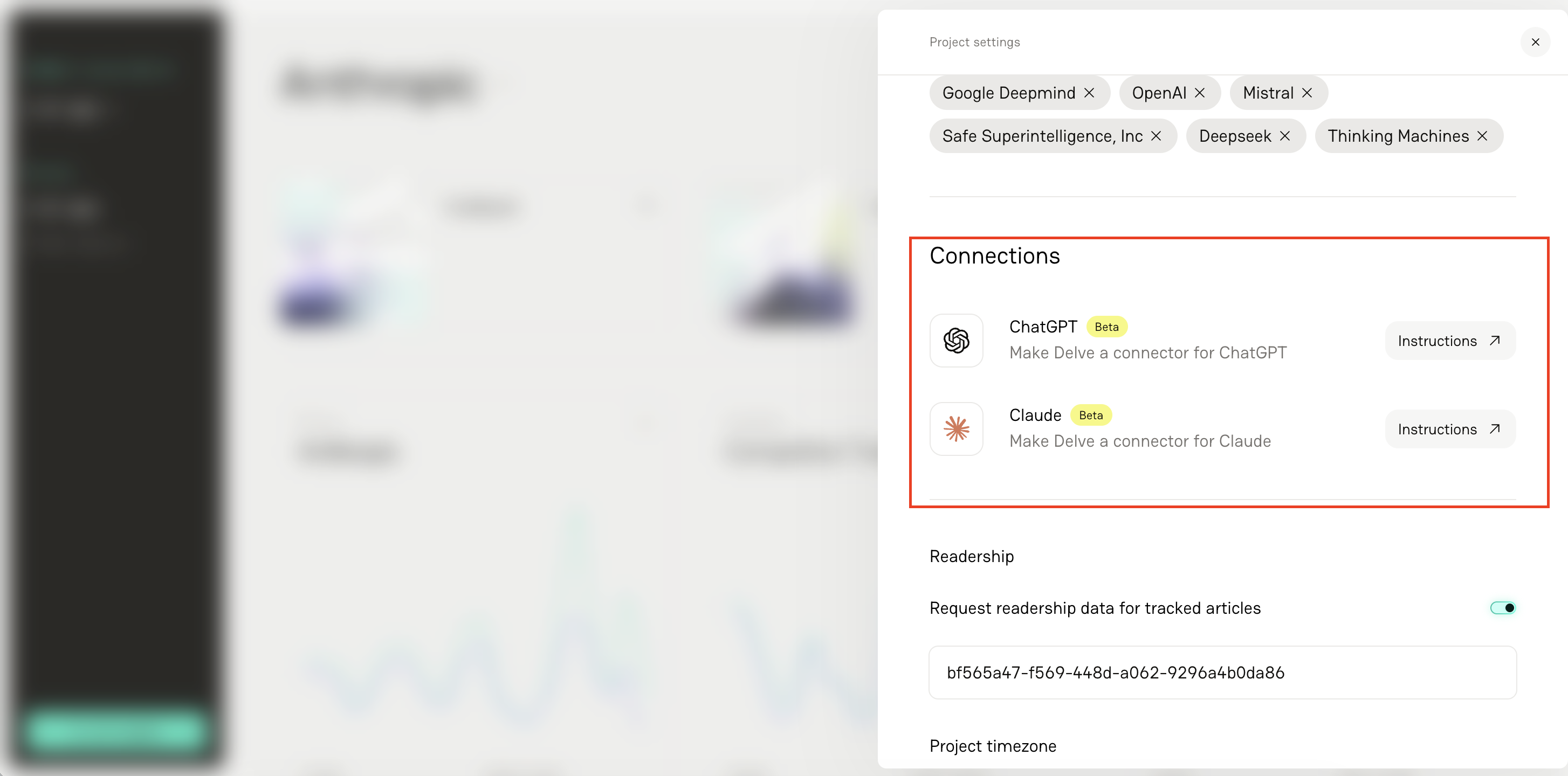
Navigate to the Connections section.
Select the tool you’d like to integrate.
Follow the on-screen instructions for ChatGPT and Claude setup.
You’ll see step-by-step instructions inside Delve for each integration.
Connecting to ChatGPT
Connecting Delve to ChatGPT allows you to extend your coverage analysis into more dynamic workflows — from asking questions about your data to generating proactive pitch ideas.
This integration is especially useful for turning reports into actionable outputs, like messaging insights or outreach drafts. Important: You must be on a Pro or Enterprise account to make a custom connector.
To connect Delve to ChatGpt:
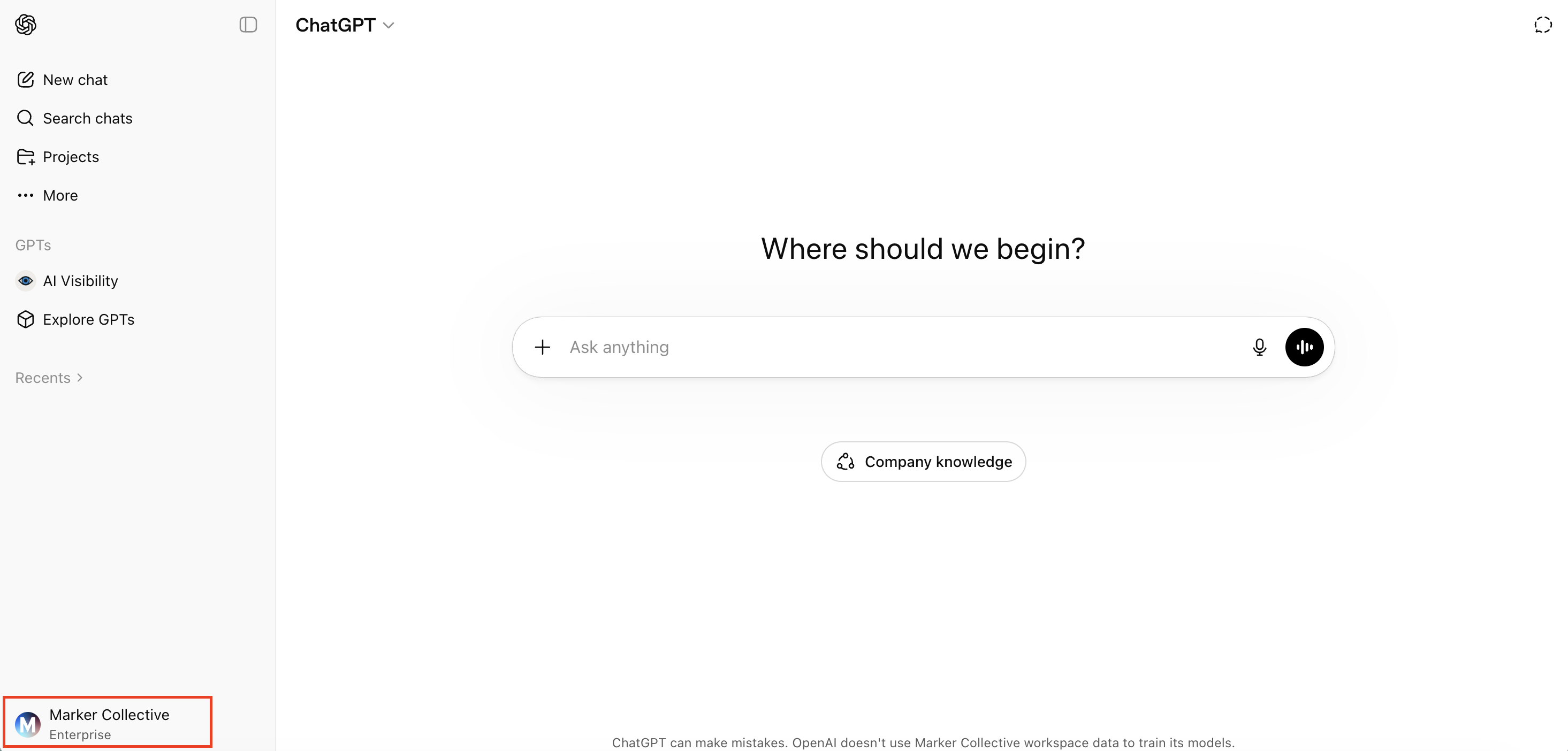
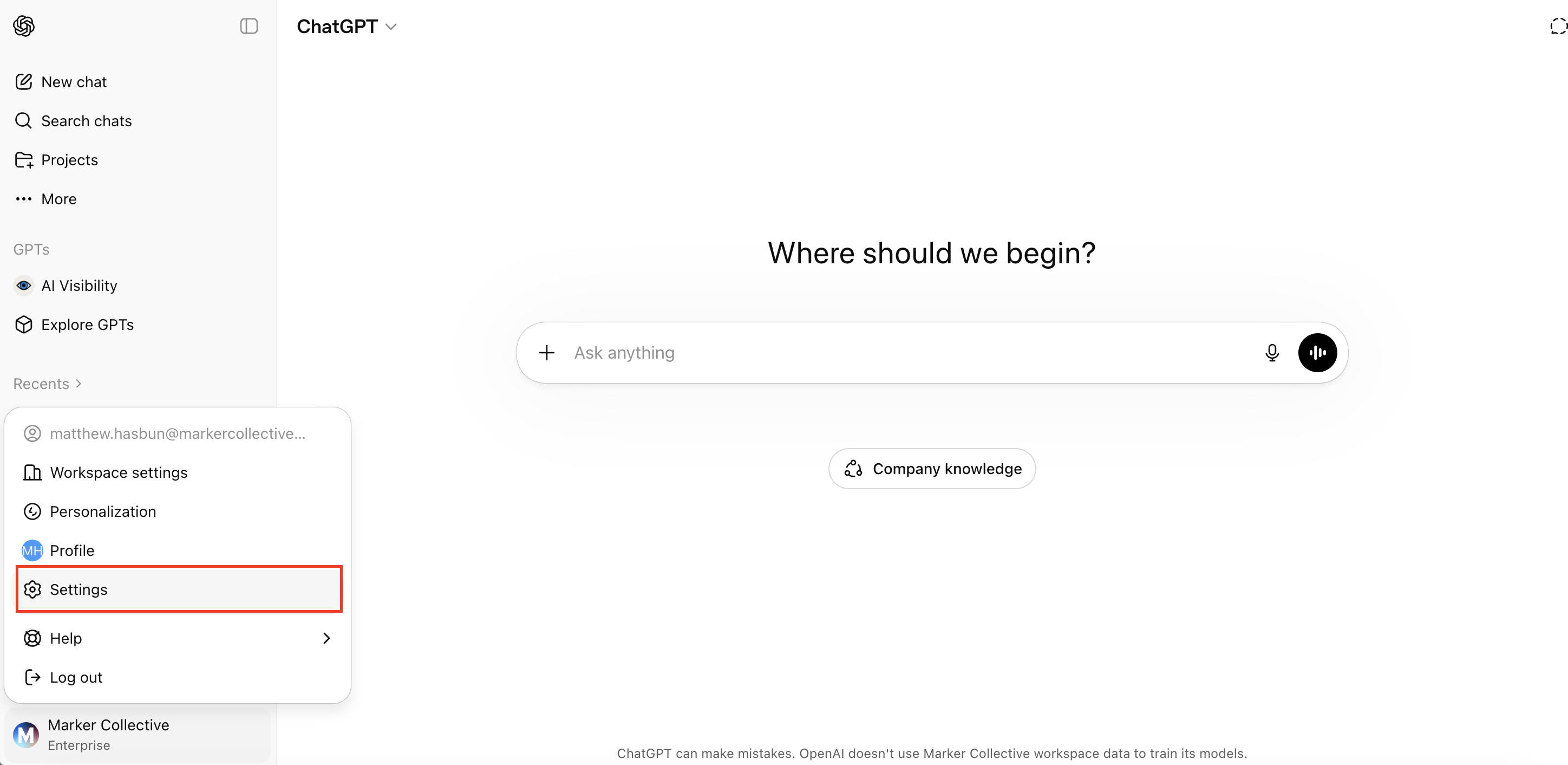
Select your profile on the bottom left-hand corner of the screen
Select Settings
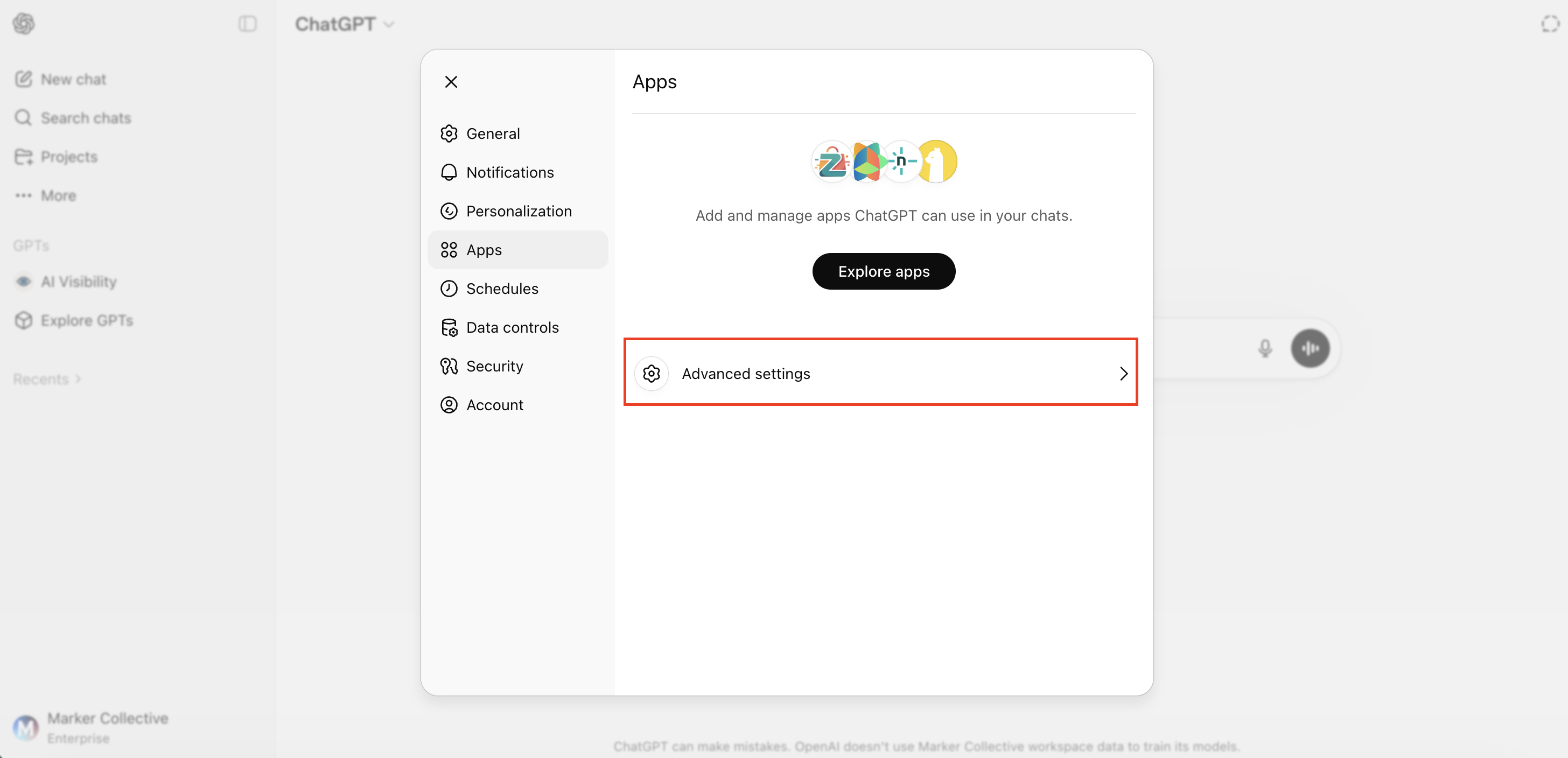
Navigate to Apps
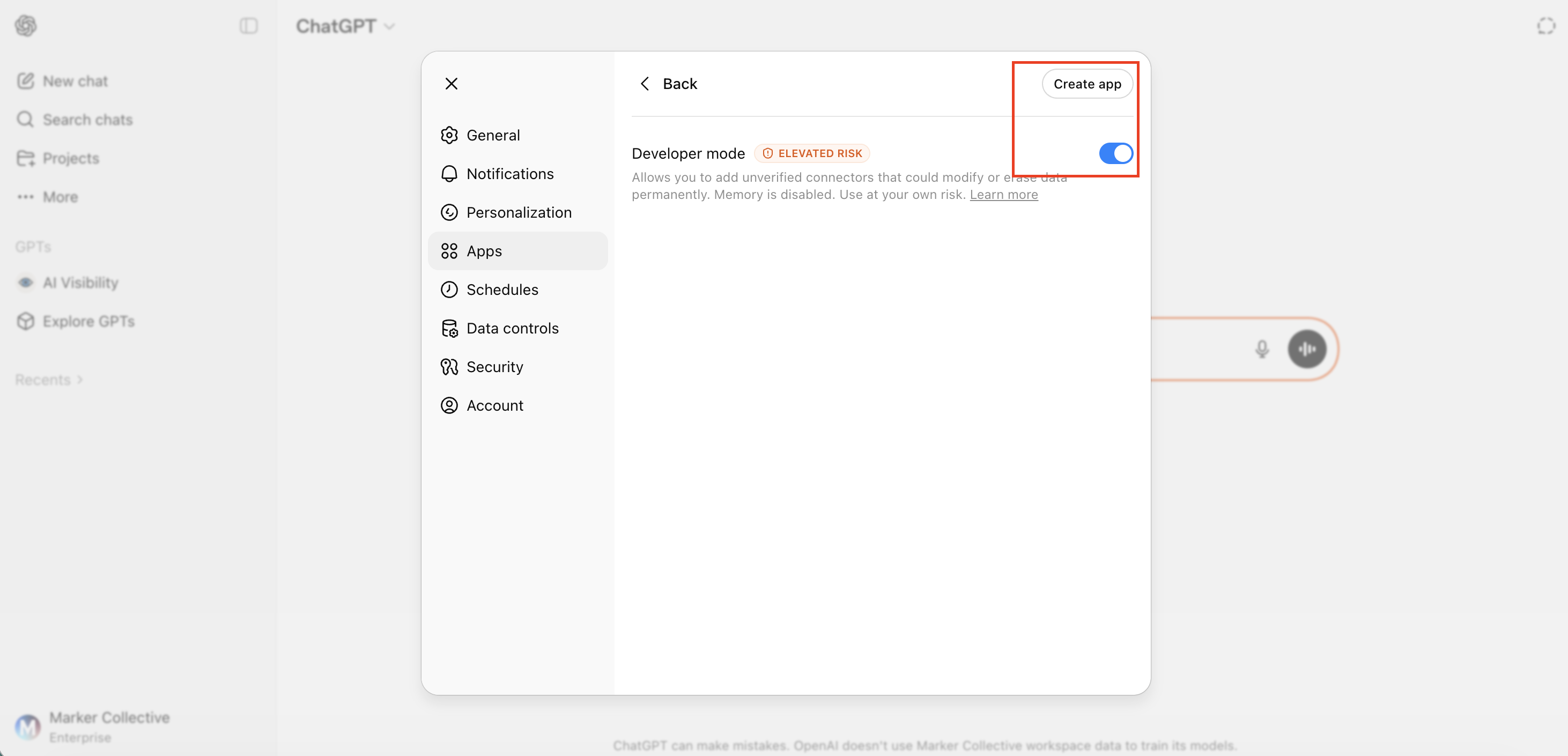
Select Advanced Settings and turn on Developer Mode
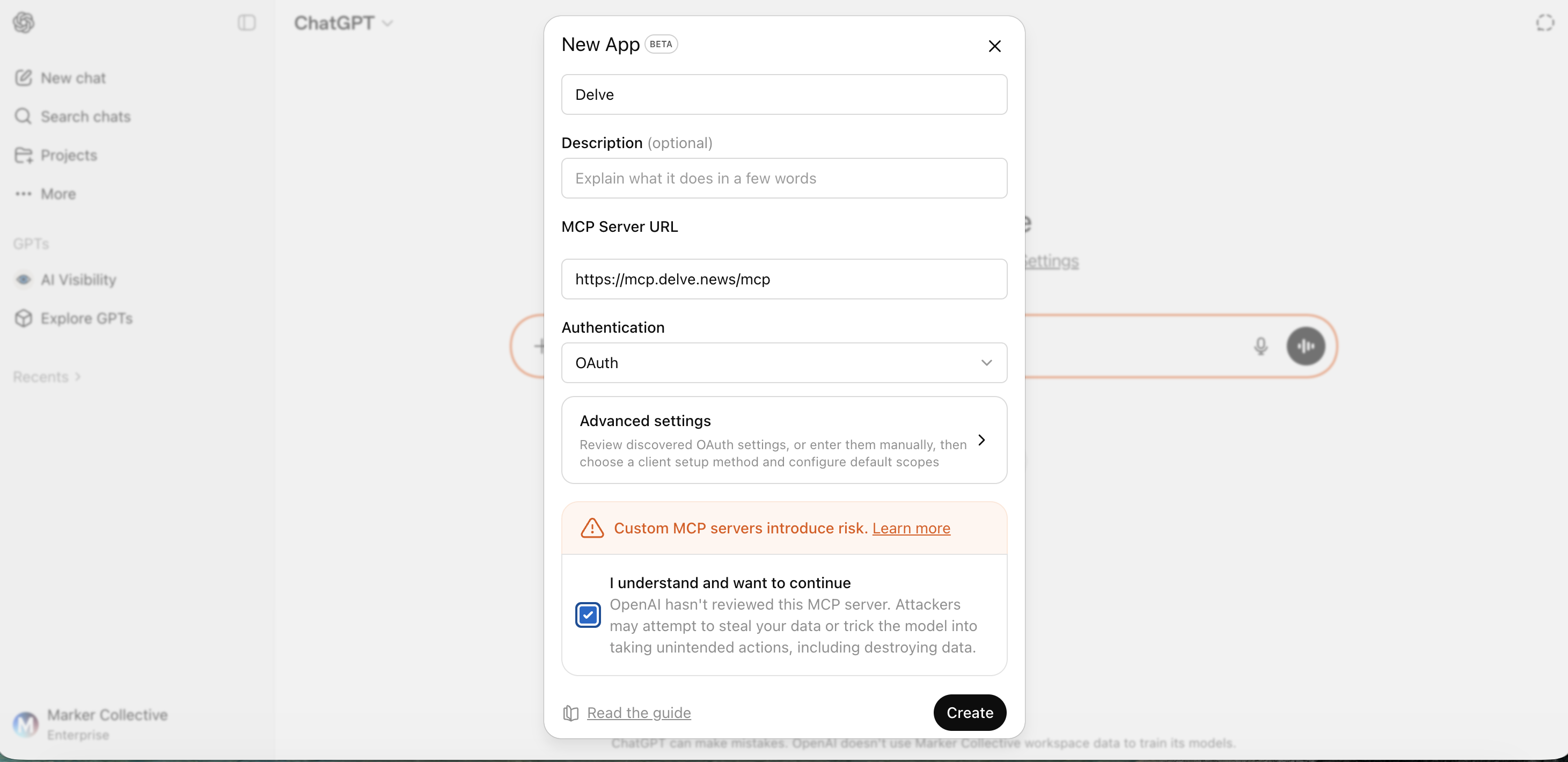
Select Create App
Name the connector "Delve"
Paste "https://mcp.delve.news/mcp" in the "MCP Server URL" field
Leave all other fields as-is and then click Create
You’ll be redirected to Delve to complete authorization
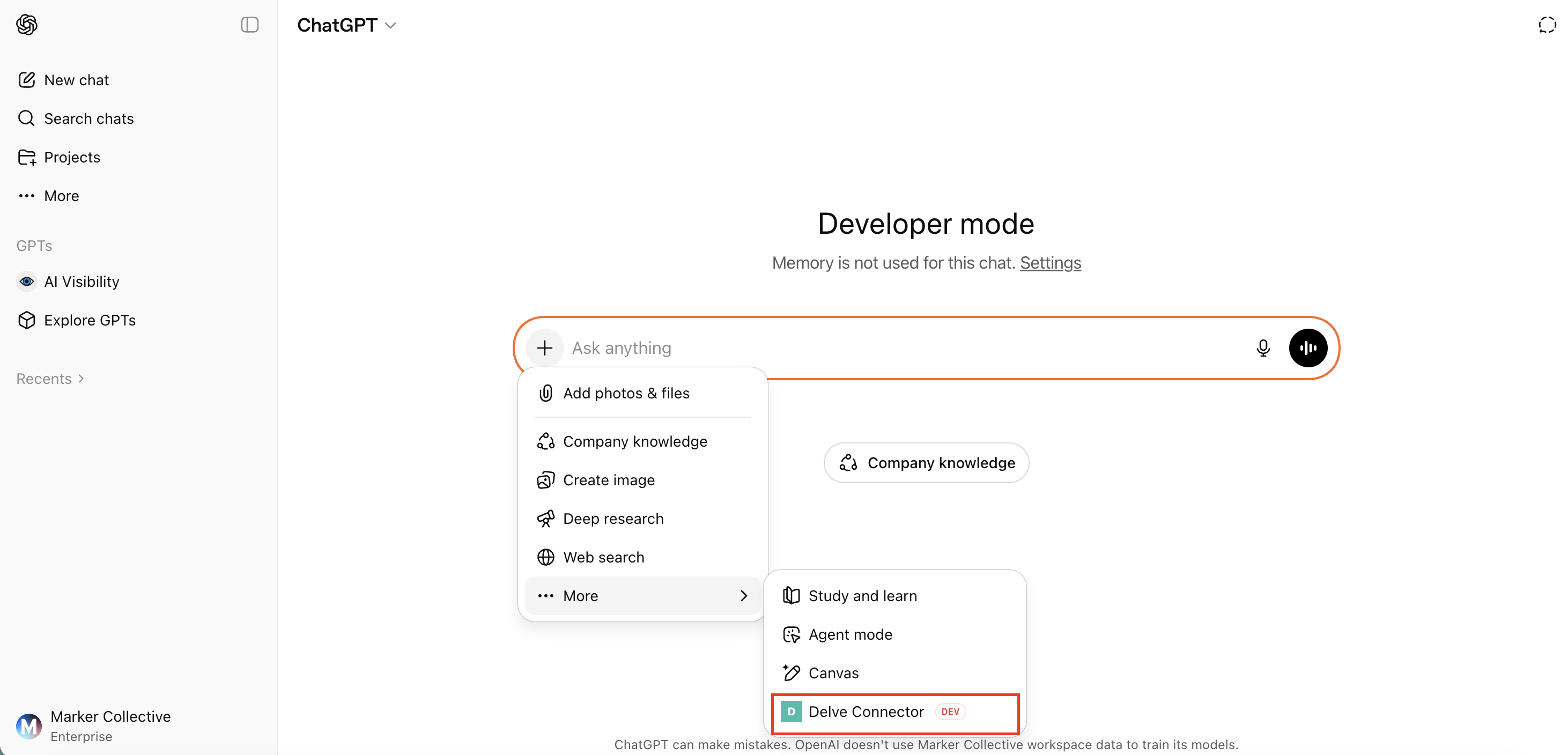
The integration will be completed and the Delve connector can be toggled on and off by selecting the Plus sign on ChatGPT's prompt box and clicking More

Connecting to Claude
Connecting Delve to Claude allows you to analyze coverage and reports within a separate conversational workflow, similar to ChatGPT.
This is helpful if your team prefers using Claude for summarization, analysis, or drafting. Important: You must be on a Pro or Enterprise account to make a custom connector.
The setup process is also very similar to ChatGPT.
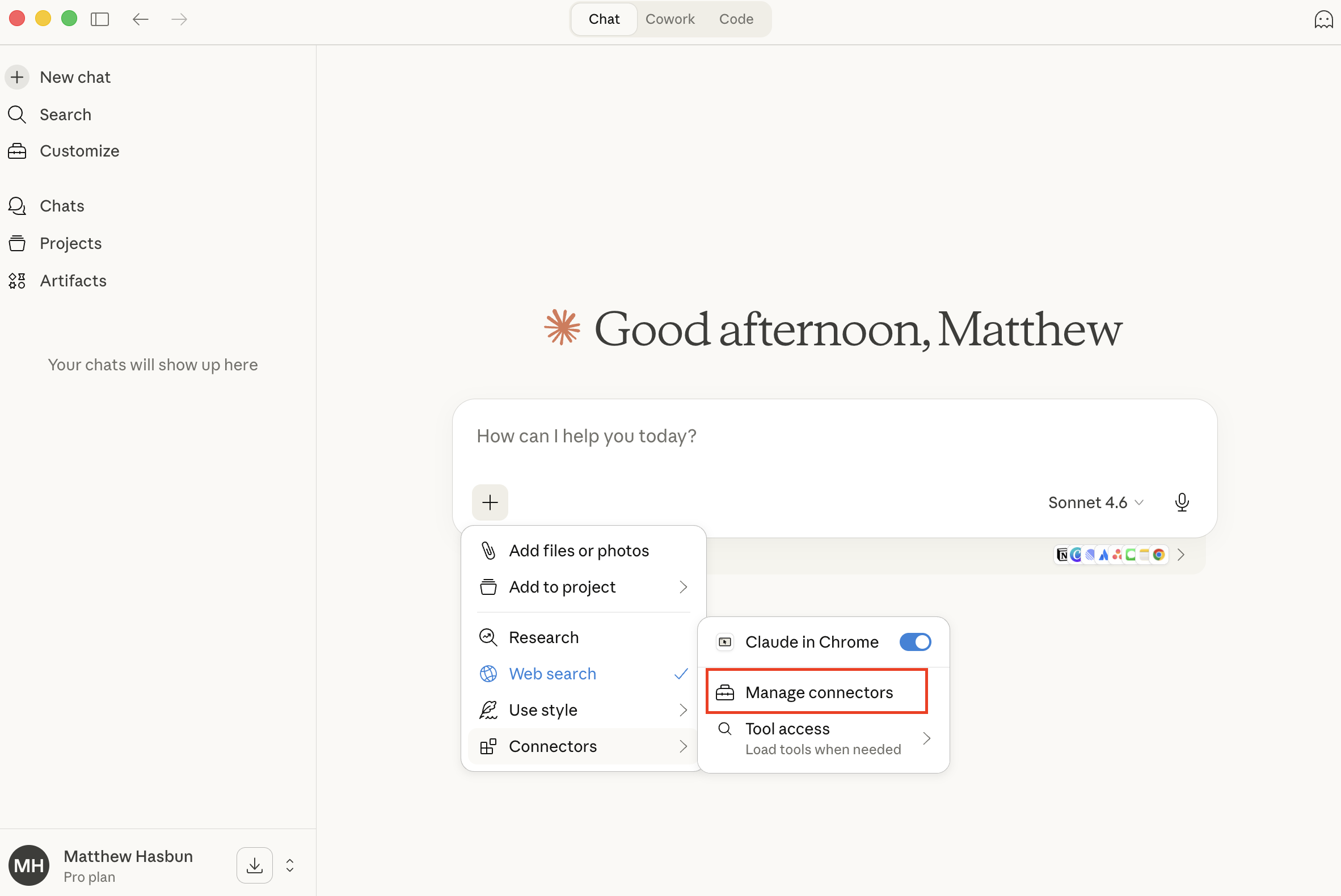
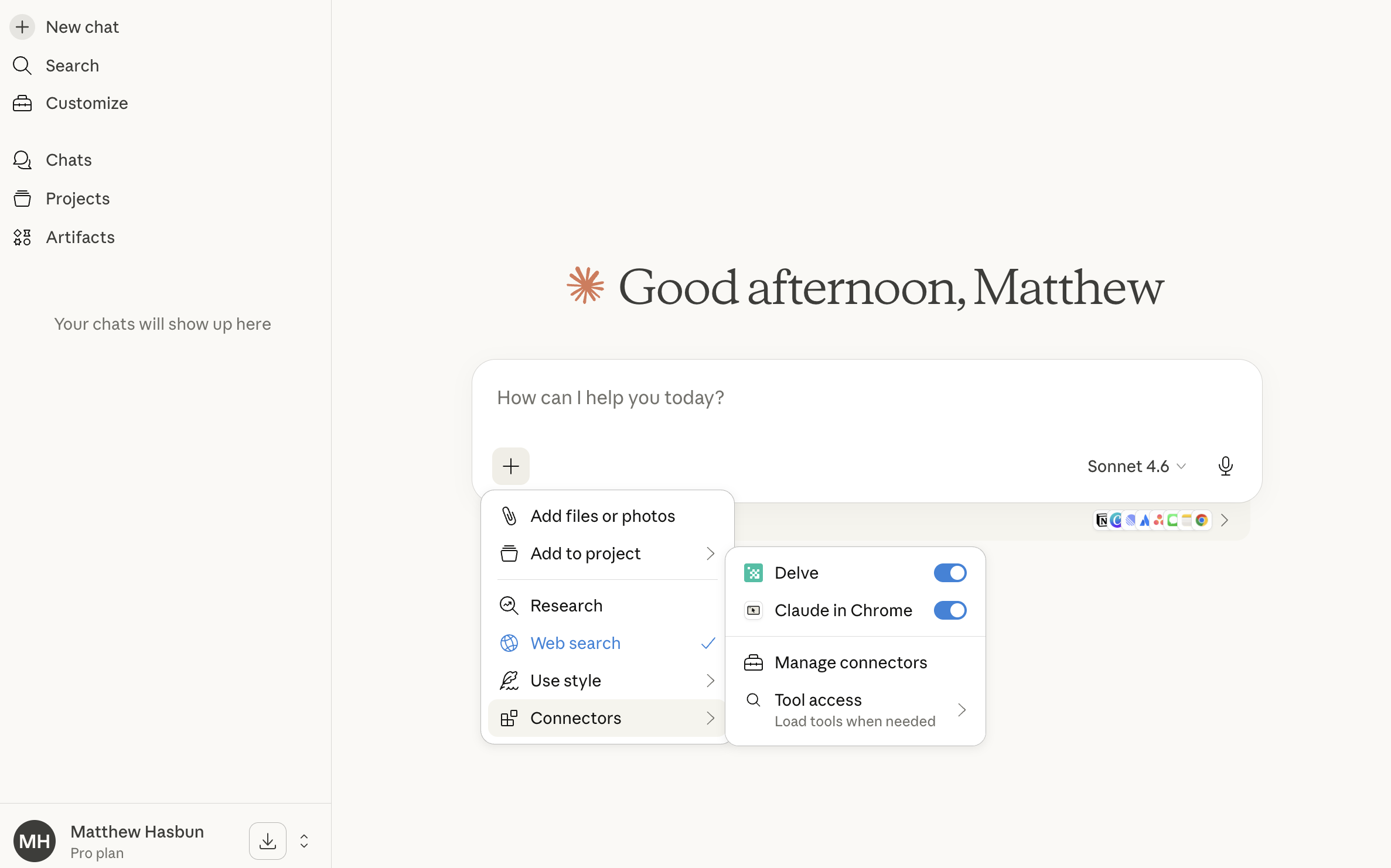
Select the Plus sign in Claude's prompt box
Navigate down the drop-down menu to Connectors and select Manage Connectors
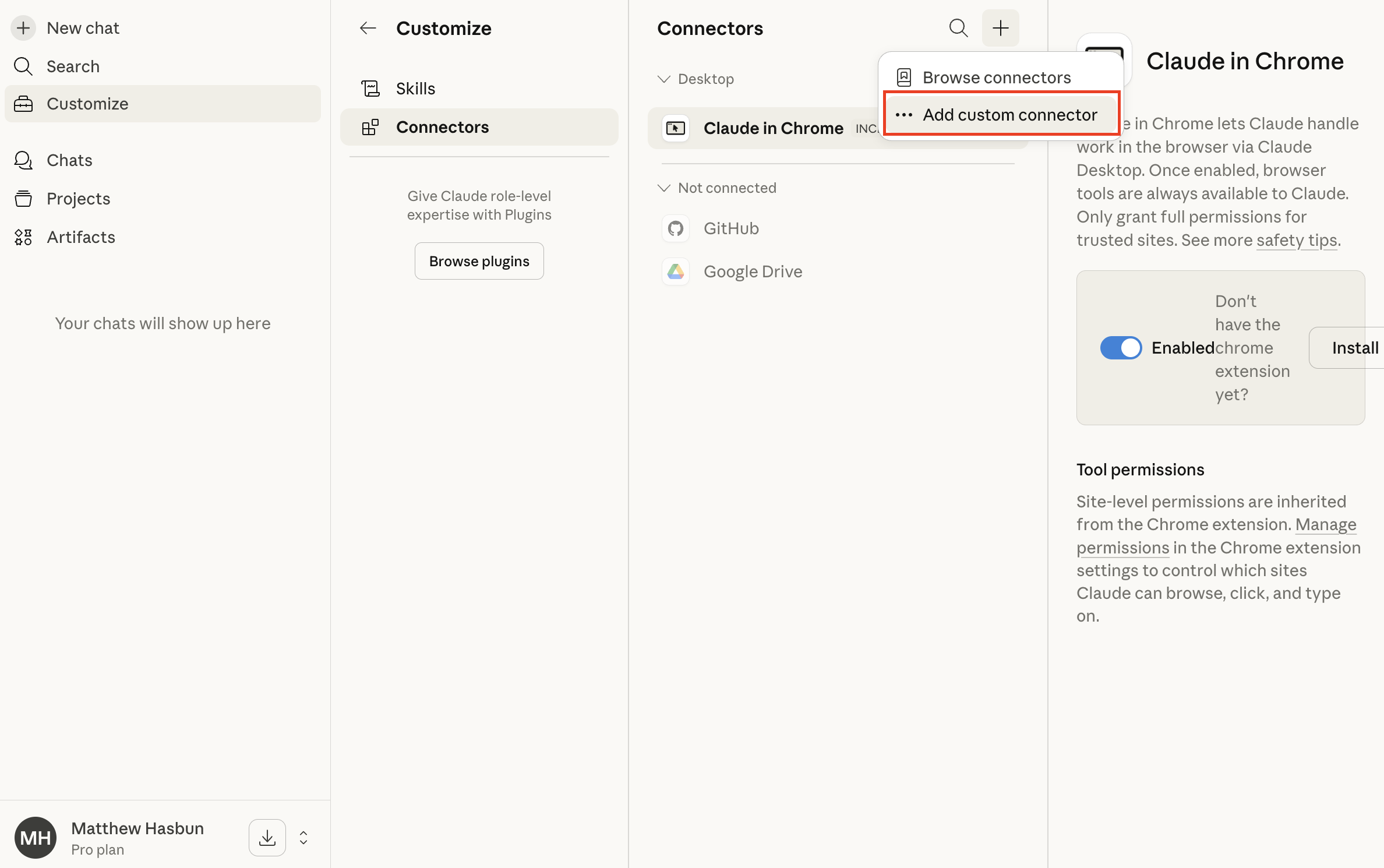
Select the Plus sign at the top of screen and then select Add custom connector
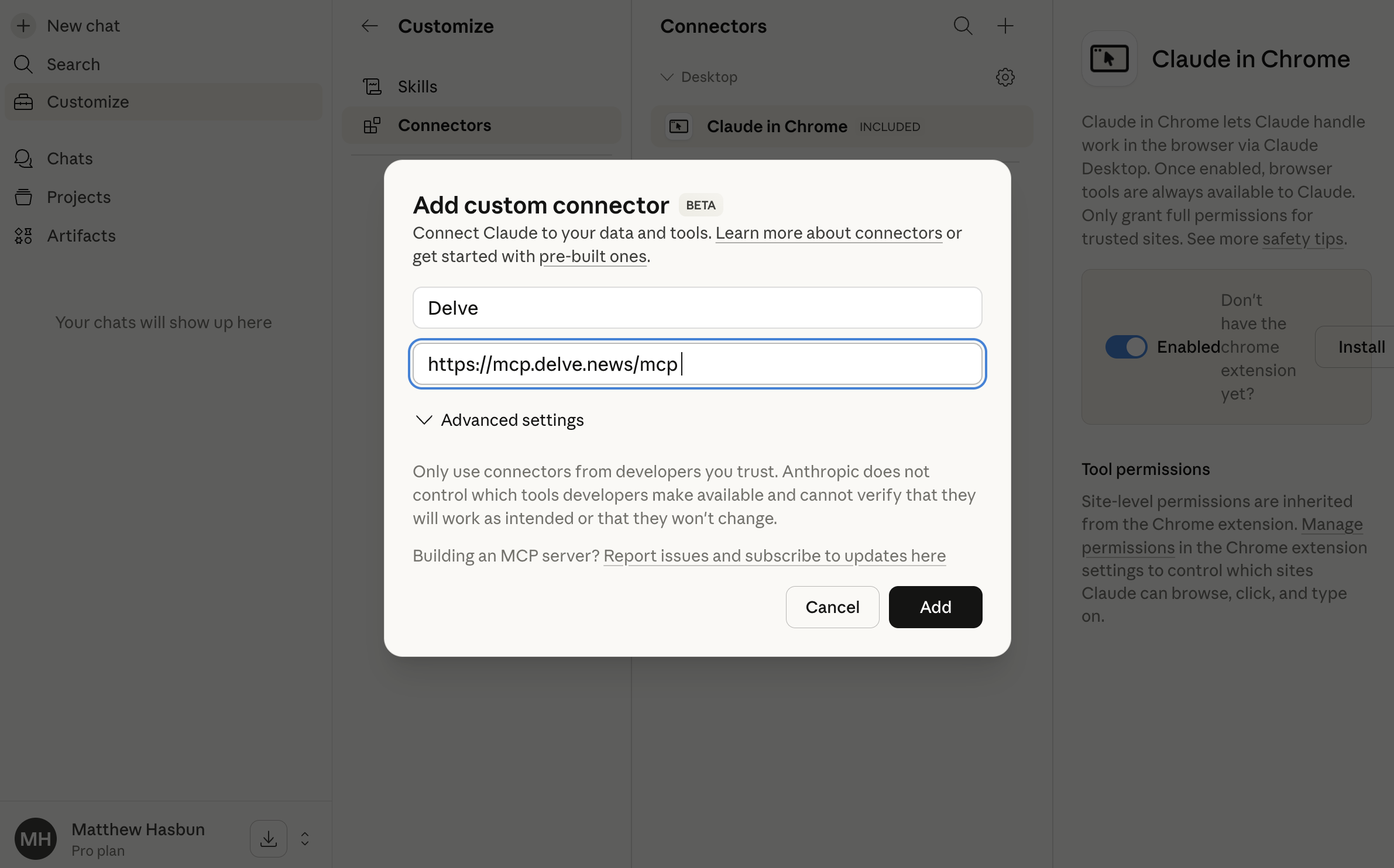
Name the connector "Delve"
Paste "https://mcp.delve.news/mcp" in the "Remote MCP Server URL” field
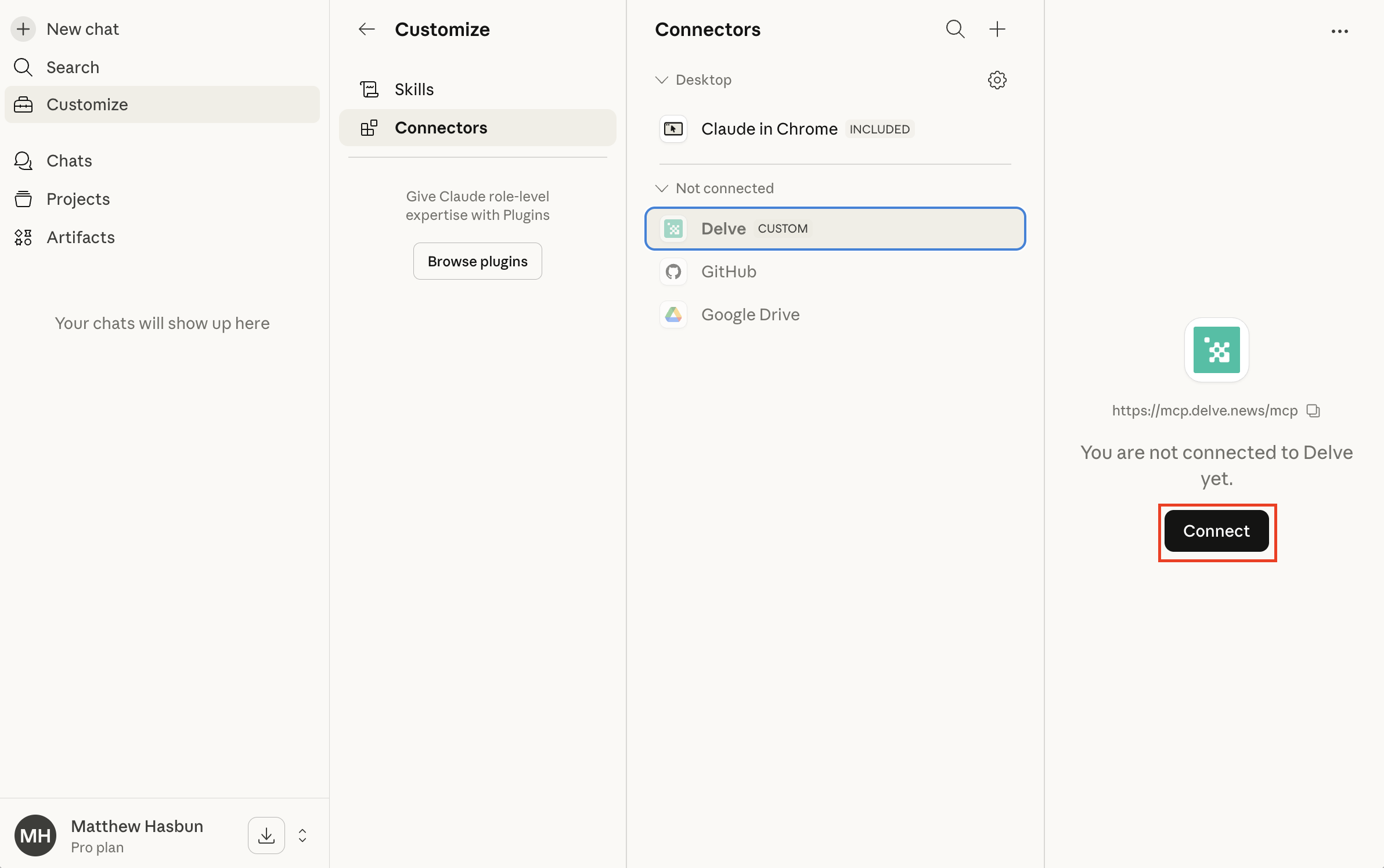
You'll be redirected back to the Connectors page - select Delve and press Select
You’ll be redirected to Delve to complete authorization
The Delve integration will now be live and tool permissions can be configured within the Connectors page

FAQs
1. Where do I find Connections in Delve?
Go to your project, click the gear icon, and navigate to the Connections section. This is where you can view and manage all integrations.
2. Do I need to connect all platforms?
No. You can connect only the tools your team actually uses — whether that’s ChatGPT, Claude, or a combination.