Tracker Management
Once you track an article, it moves into your Tracker — this is where the full analysis lives.
If the Inbox is for triage, the Tracker is for strategy.
This is where you:
Analyze trends
Filter and slice coverage
Compare competitors
Review sentiment
Generate reports
It’s also where imported coverage goes automatically.
Importing an Article Directly
If you come across coverage and you’re not sure whether it’s already in your Tracker, you don’t need to go hunting for it.
Instead:
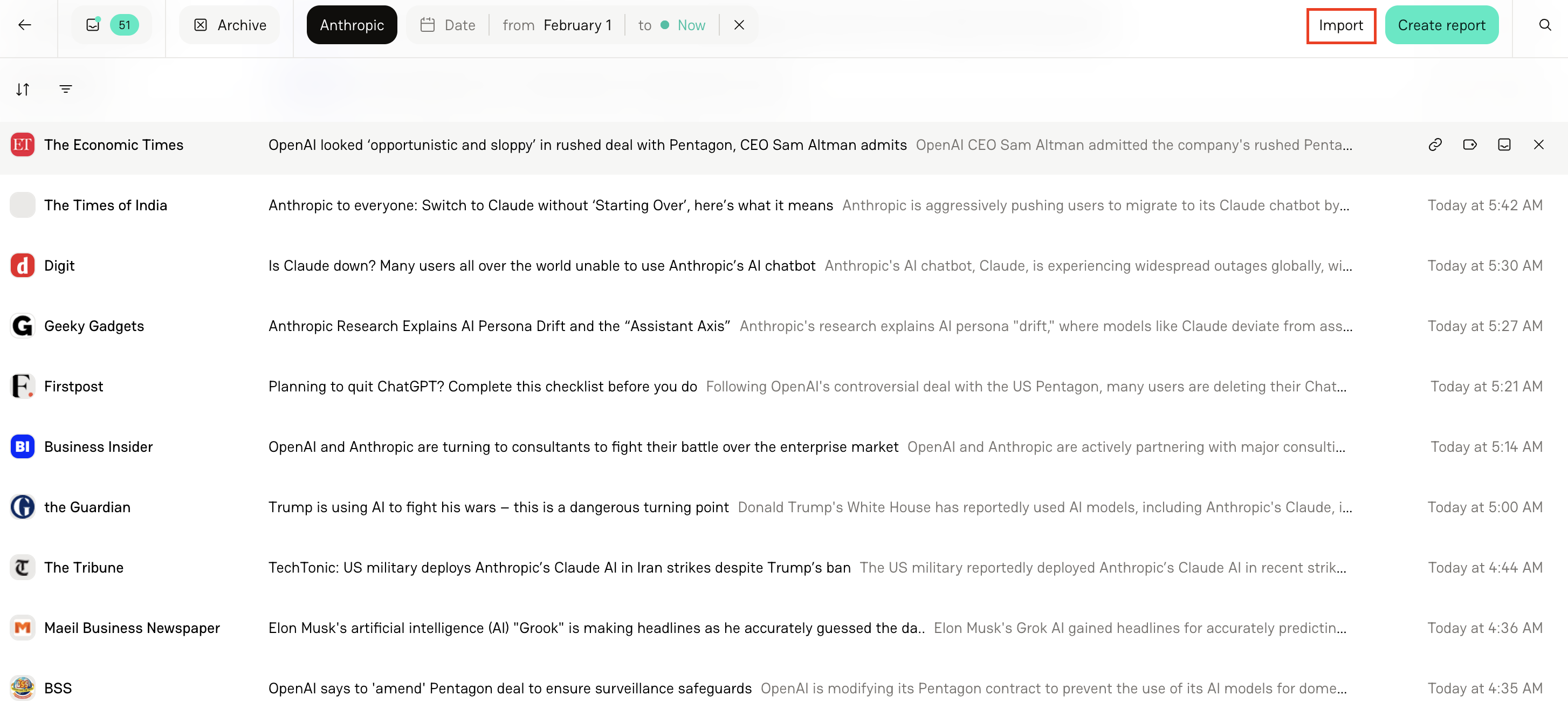
Select Import at the top right-hand of your screen
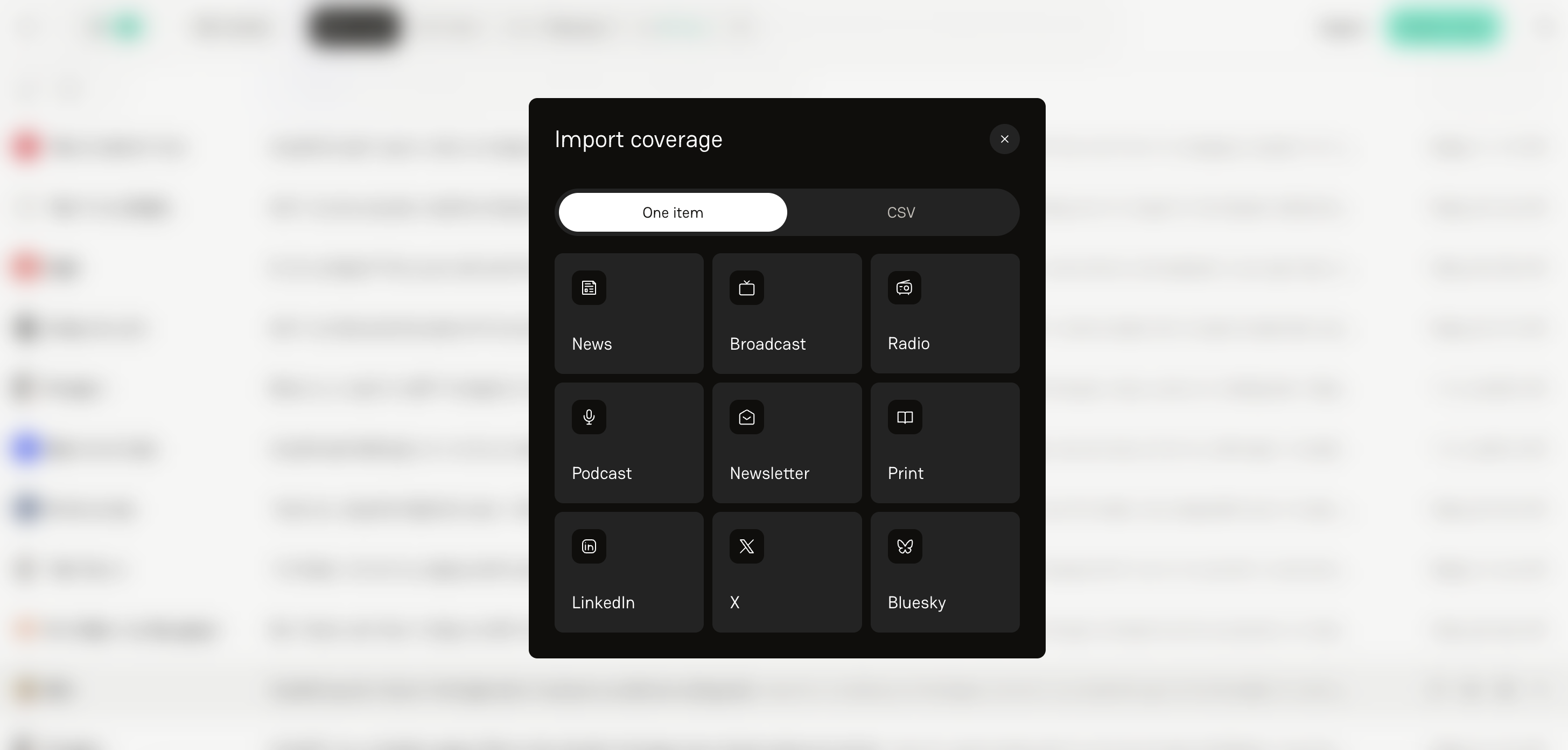
Select coverage type (e.g., news, broadcast, podcast, etc.)
Paste the link
Submit
Delve will automatically:
Analyze the article
Deduplicate it if it’s already in your Tracker
Move it from Inbox to Tracker if it was sitting there
Or add it directly to your Tracker if it’s brand new
When you import an article this way, it skips the Inbox entirely. We treat it as a signal that you care about it — so we immediately process and analyze it. Important: Importing coverage counts towards your monthly tracked coverage allotment.
What Happens After You Track an Article
Once an article is tracked, Delve begins its analysis (usually takes ~30 seconds).
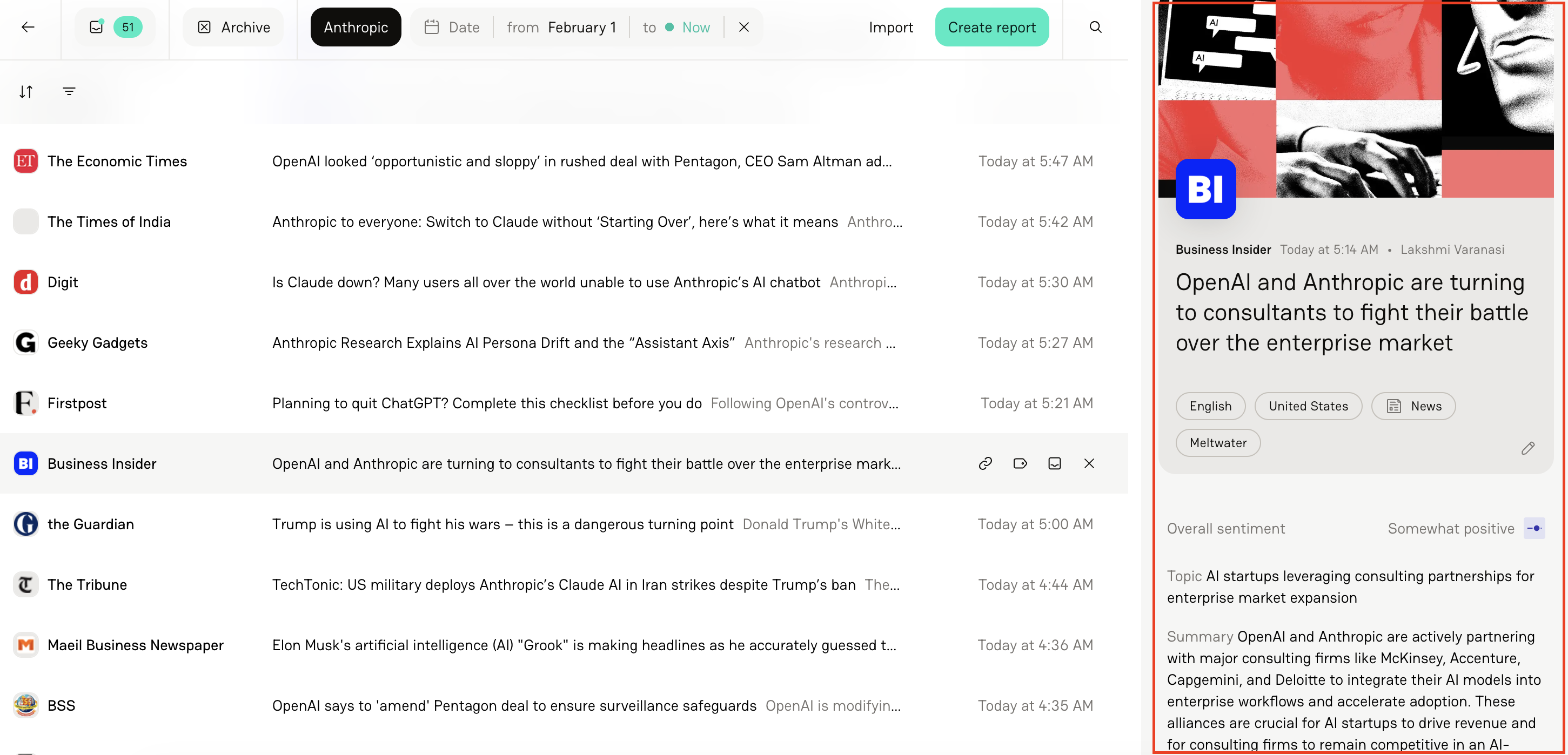
When analysis is complete, you’ll see on the right-hand side of your screen:
Overall article sentiment
Summary
Why it matters
New developments
Takeaway
Quotes
Author quotes
Third-party experts
Company spokespeople
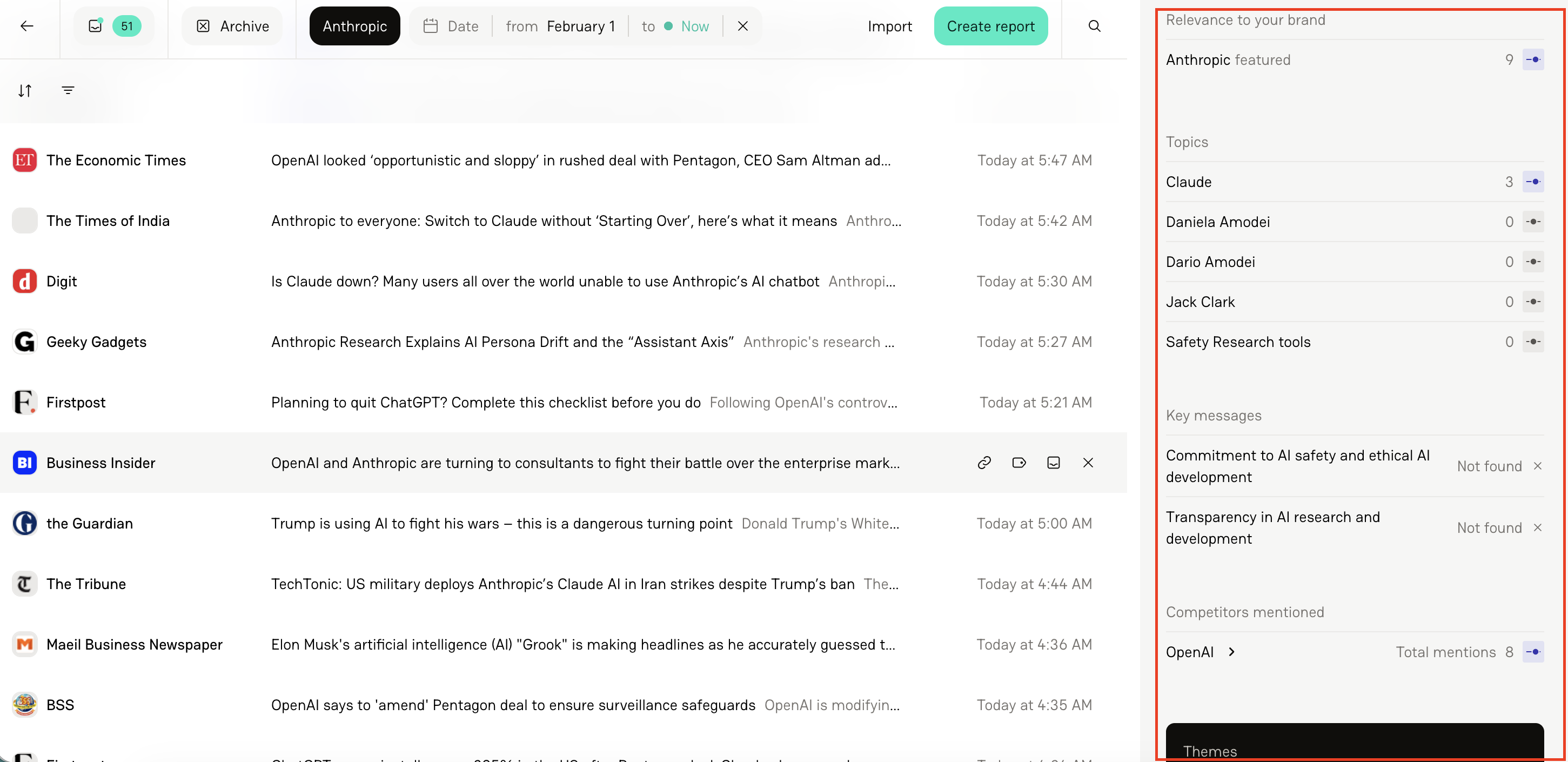
Competitors
Brand mentions
Including mention count and sentiment
Topics
Number of mentions + sentiment per topic
Message pull-through
Automatically tagged themes (from 650+ predefined themes)
This is where Delve moves beyond monitoring and into structured insight.
Filtering in the Tracker
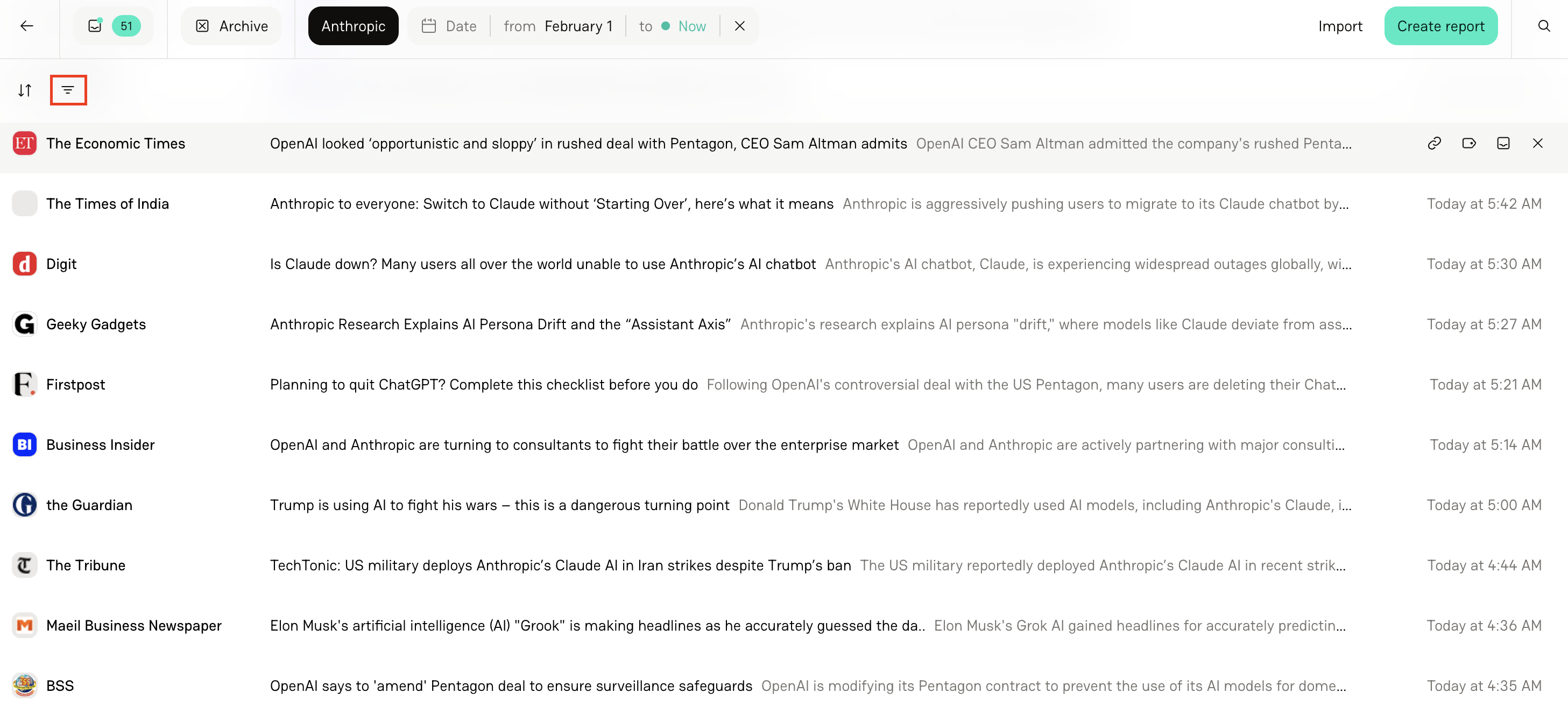
The Tracker includes more robust filtering than the Inbox.
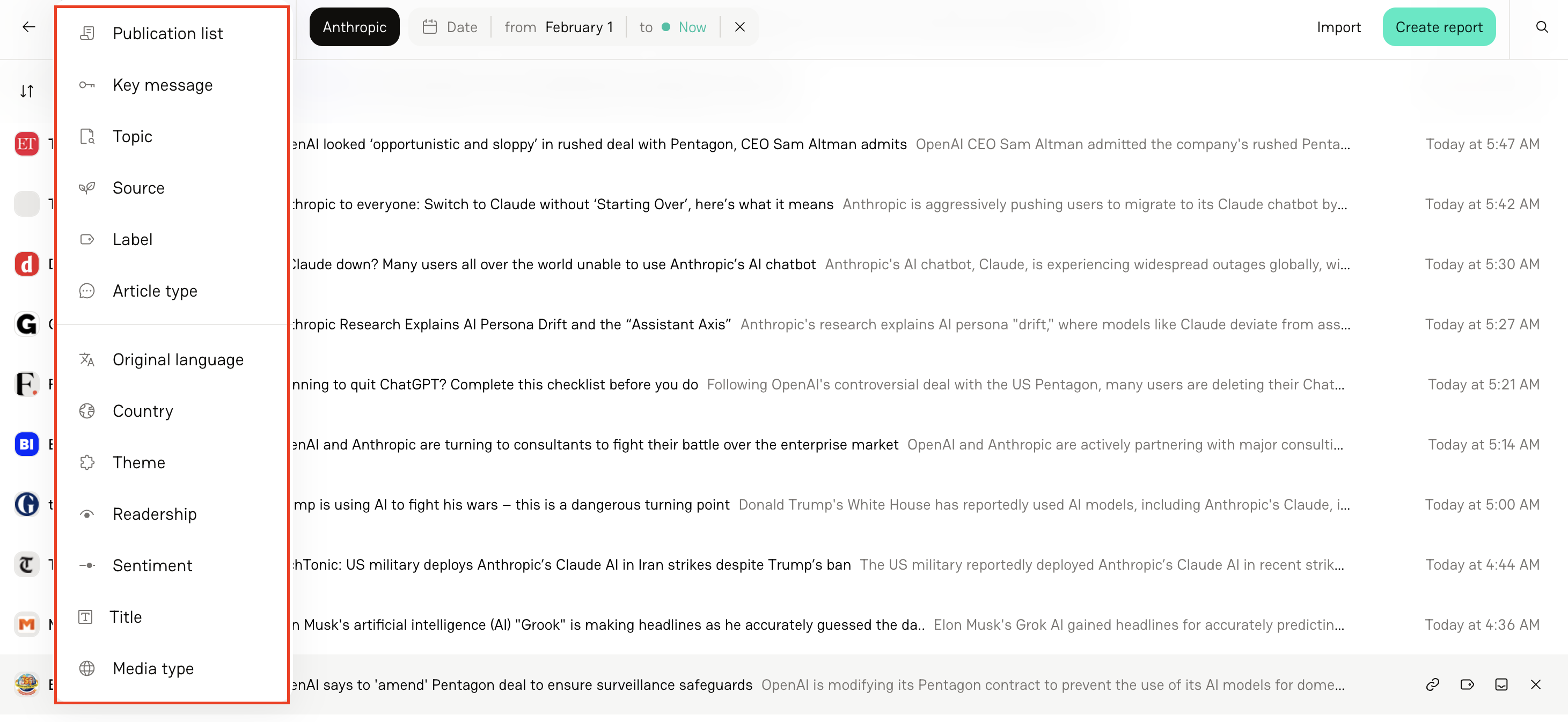
You can filter by:
Date range
Publication list
Key message
Topic
Source
Label
Article Type
Language
Country or region
Theme
Readership
Sentiment
Title
Media Type
These filters allow you to create very specific views, for example:
Coverage mentioning the CEO with negative sentiment
Tier 1 publications only
Articles containing a specific key message
North America coverage only
Competitor mentions within the last 30 days
Sorting in the Tracker
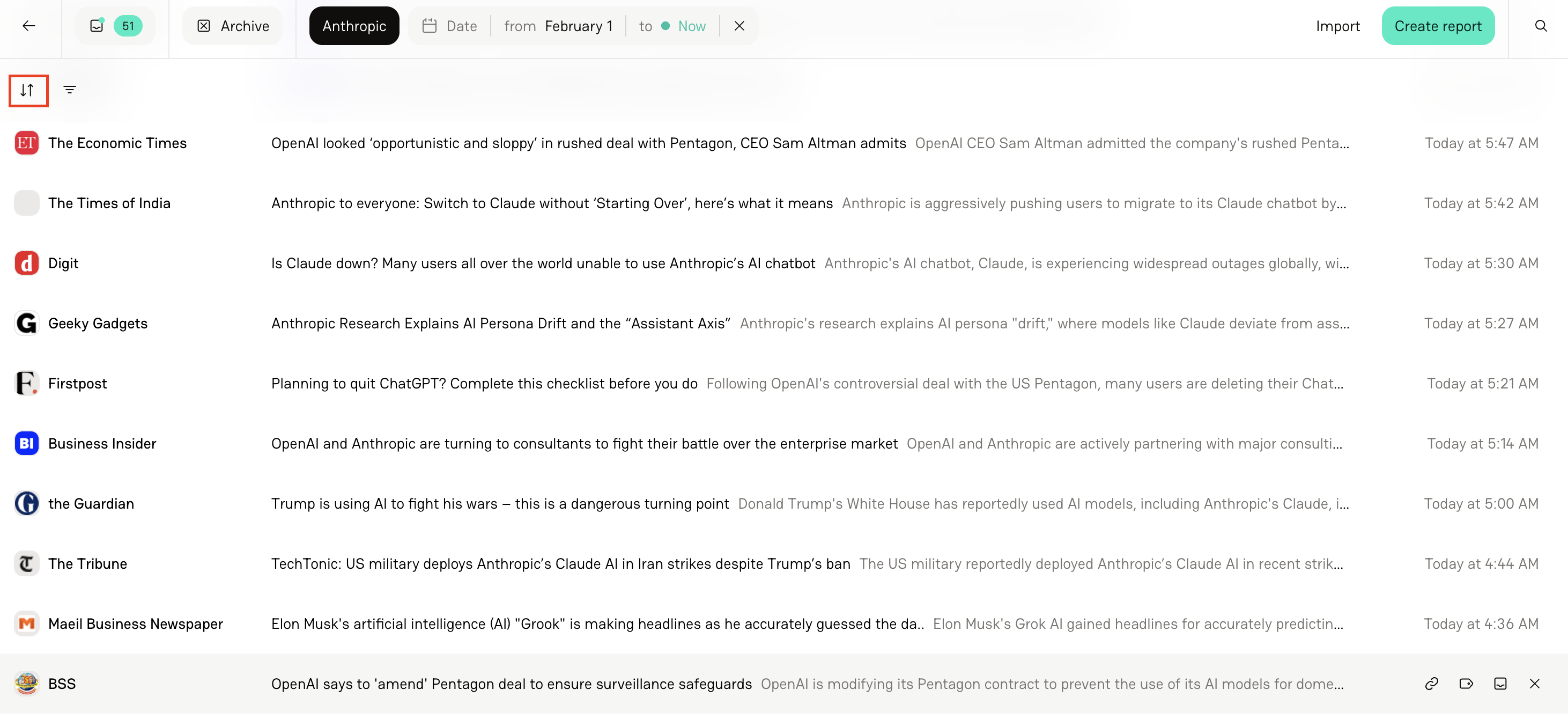
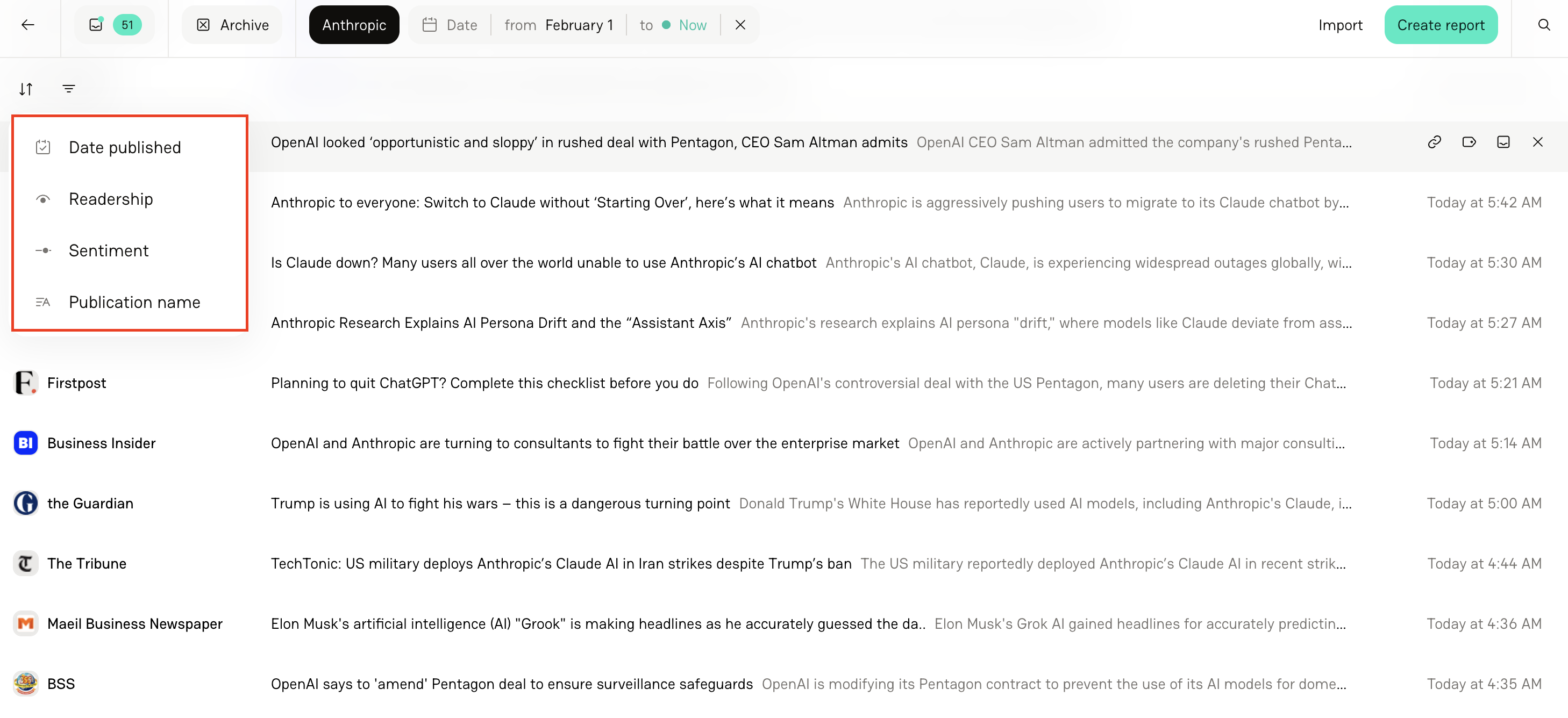
In addition to filtering, you can sort coverage by clicking ↑↓ next to the Filter icon and organize by:
Date
Readership
Sentiment
Publication name
Editing Tracked Items
Another common question is:
Can I edit a tracked article after it’s been analyzed?
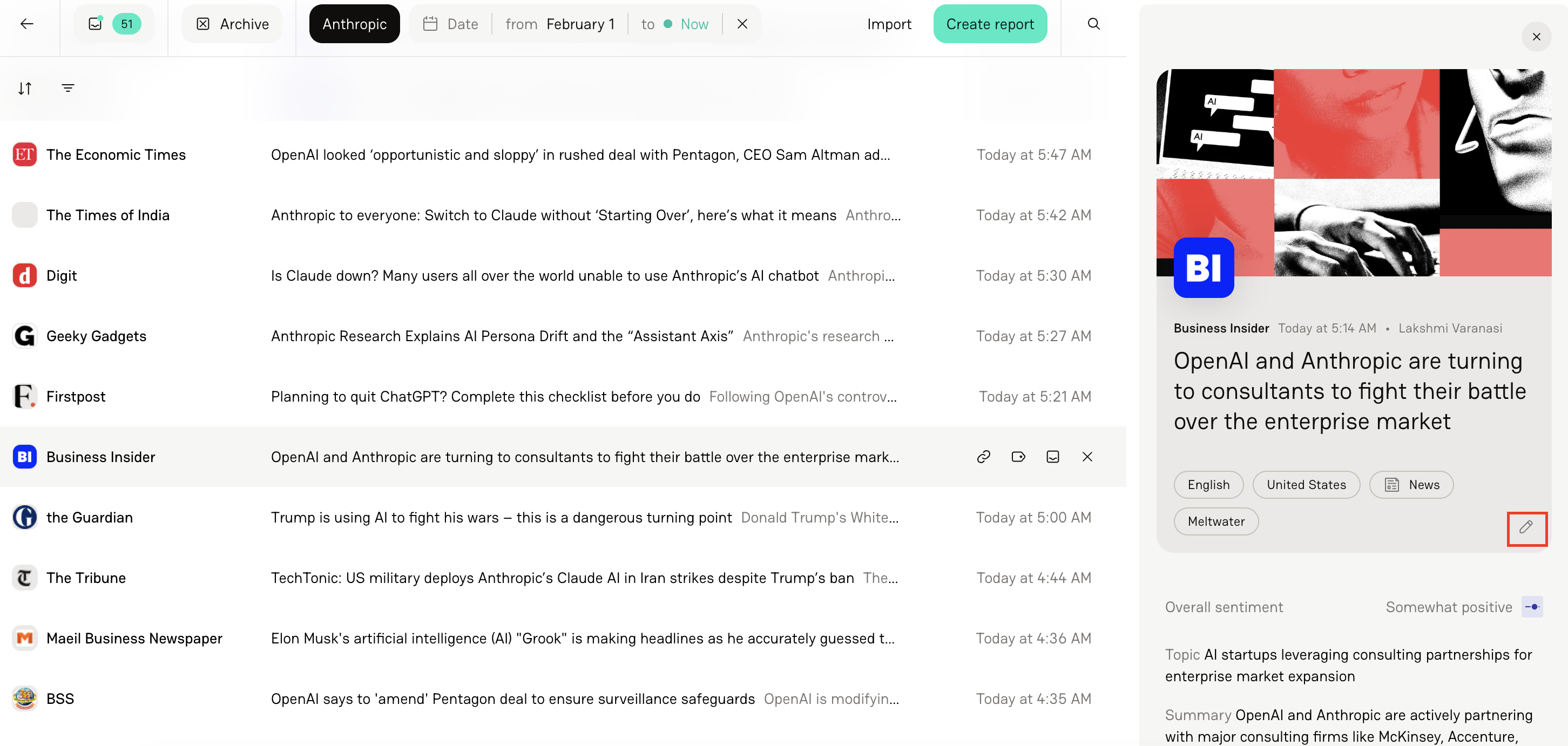
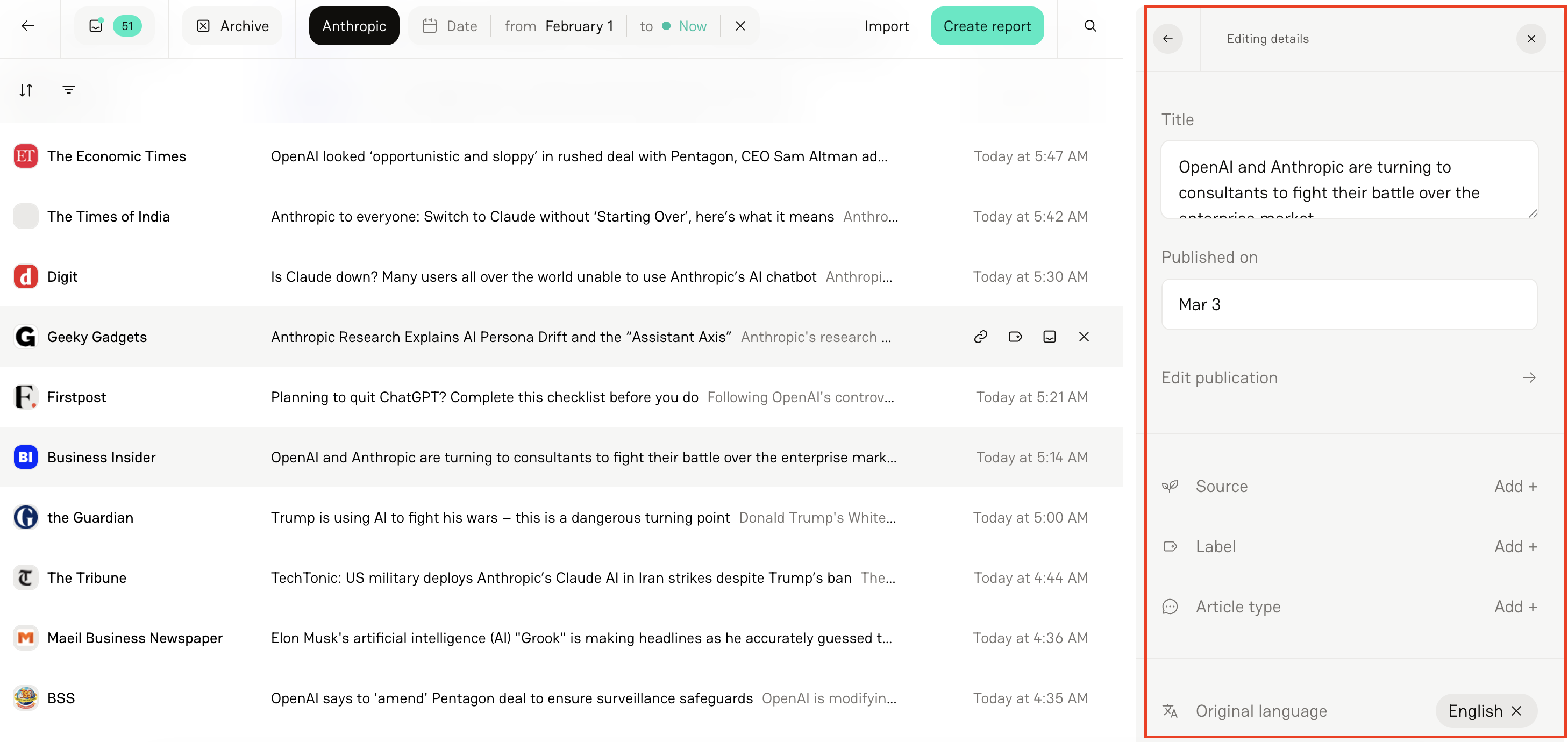
Yes — you can update certain fields directly within the Tracker.
Editable fields include:
Title
Publication date
Source
Label
Article type
Language
Country
Media Type
These updates are helpful if:
A headline was pulled incorrectly
A publication date needs adjustment
You want to reclassify article type
You’re organizing coverage using labels
Bulk Editing (Multi-Select)
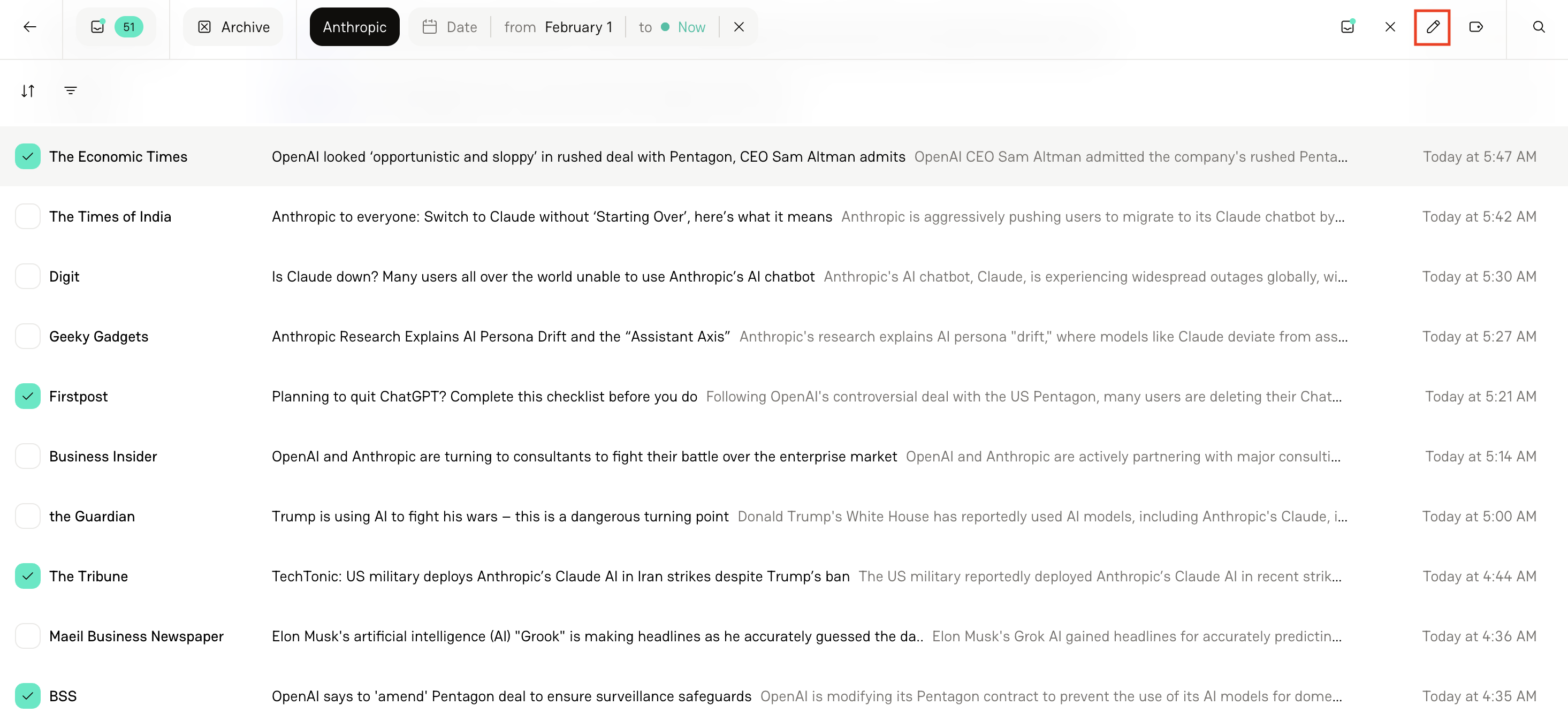
You can also edit articles in bulk.
To do this:
Use multi-select to select multiple tracked items.
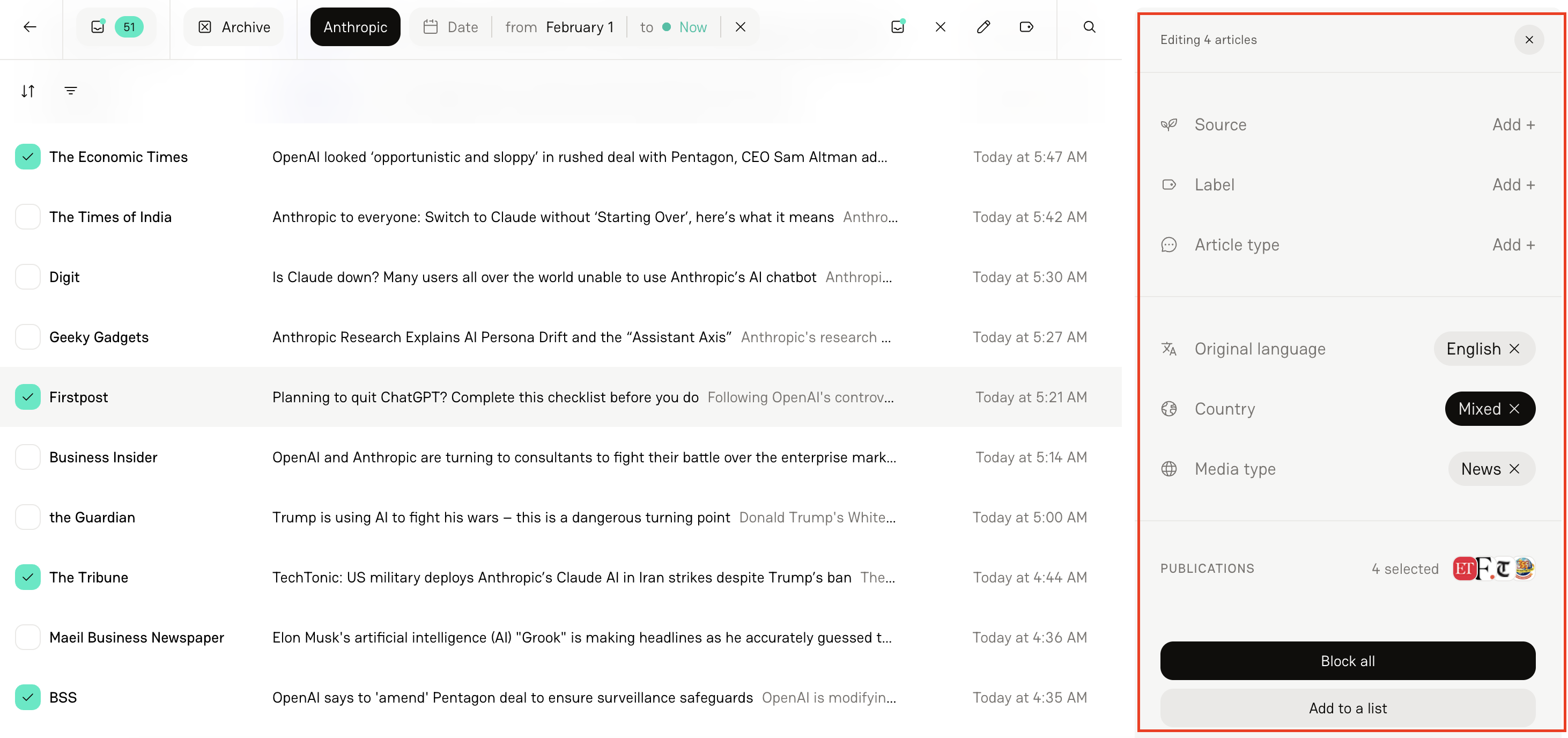
Click Edit.
Apply changes across all selected items.
This is especially useful when:
Applying labels to multiple articles
Updating article types
Cleaning up metadata across a time period
Search in the Tracker
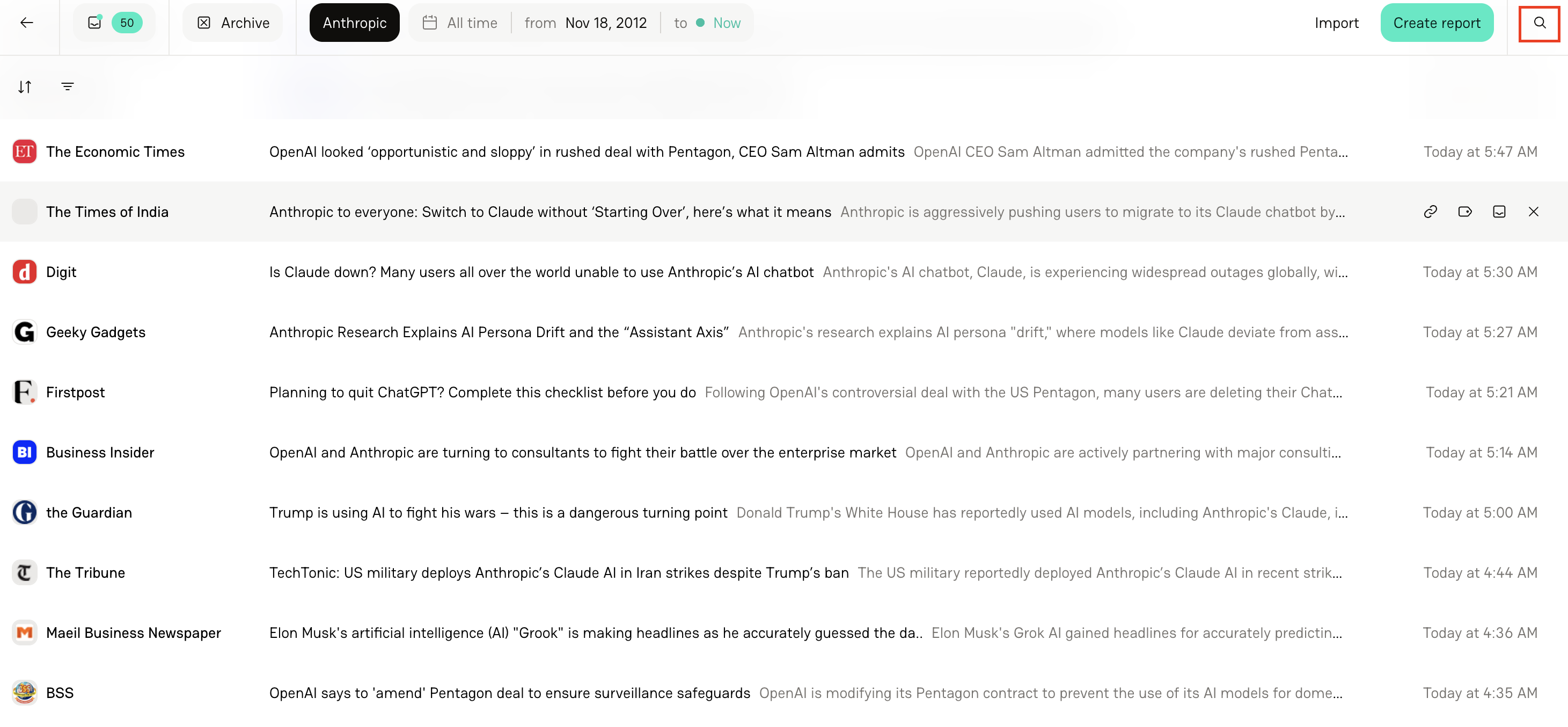
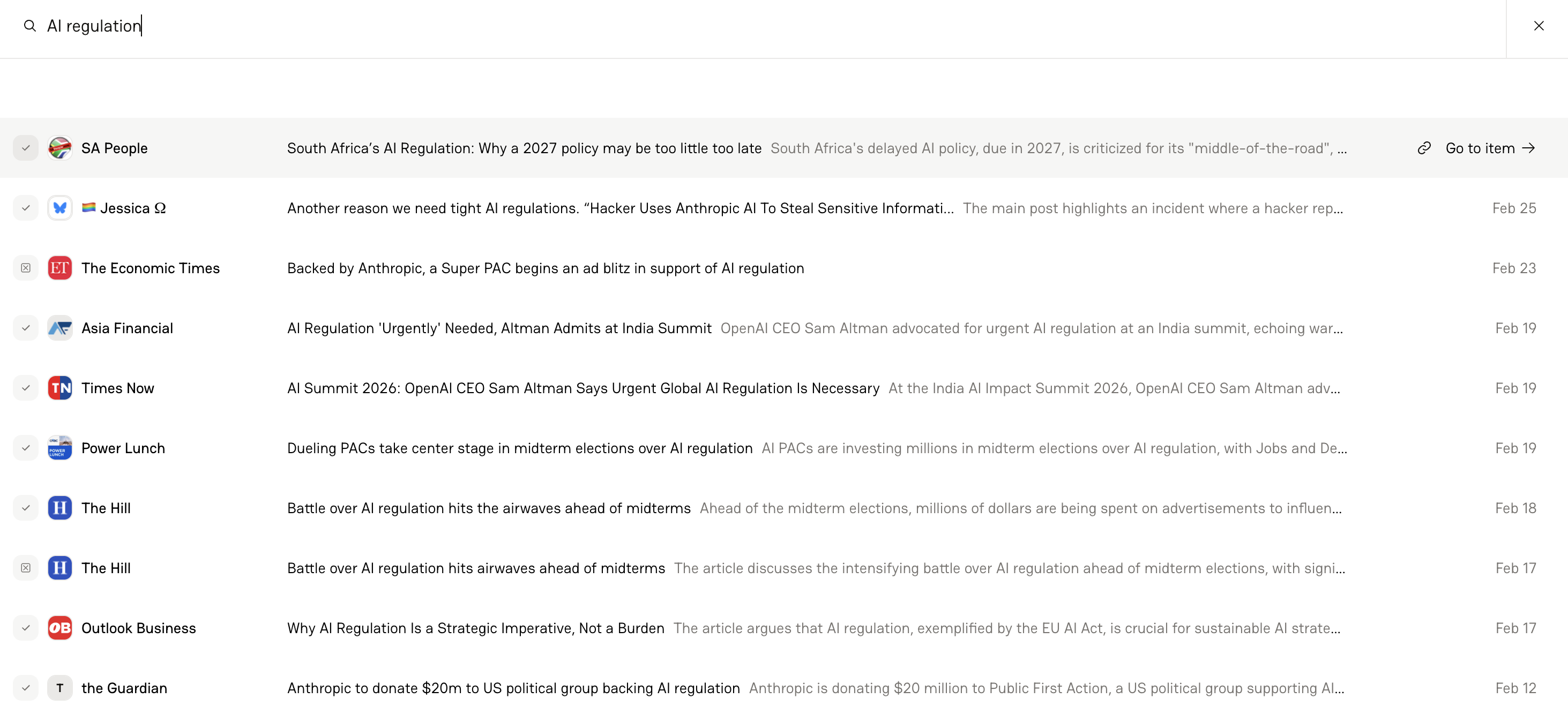
There is also a Search function within the Tracker.
It’s best used for:
Finding a specific article
Checking whether something has already been tracked
Locating coverage by headline
For broader historical research, Quick Search is more powerful. Think of Tracker Search as a way to quickly find coverage that's already in your Tracker.
FAQs
1. What’s the difference between Inbox and Tracker?
Inbox is for reviewing new coverage and deciding what to track. Tracker is where fully analyzed articles live and where reporting happens.
2. Can I filter a Tracker by a key message?
Yes. You can filter specifically by key message to see only articles where that message was detected.
3. If I import coverage, does it go through Inbox first?
No. Imported articles go directly into the Tracker and are analyzed immediately.
4. Do imported articles count toward my monthly limit?
If the article is new and hasn’t been tracked before, yes — it will count toward your tracked item allotment.
5. Can I re-filter coverage after it’s been tracked?
Absolutely. Tracker filters are dynamic. You can adjust filters anytime without reprocessing the article.
6. I accidentally tracked coverage I didn't want. What do I do?
No worries! If you track or archive a piece of coverage, simply press Command Z and Delve will undo the action.
7. I tracked an article and see “retry analysis” — what should I do?
This usually means the initial analysis didn’t complete successfully. Click Retry Analysis to run it again. If the issue continues, check your internet connection and try again.
8. I tracked an article and see “paste text” — what should I do?
This usually means there was an issues accessing the coverage content. Simply select "Paste Article Text", paste the article in full, and the analysis should configure from there.