Adding and Removing Team Members to Projects
In Delve, projects and teams go hand in hand. A project is simply a collection of trackers focused on a specific subject - like a brand, campaign, or business unit. A team is where you manage who has access. Anytime you need to add or remove someone, you’ll do that at the team level.
Most teams have one project, but that’s not always the case. Agencies often manage multiple client projects under one team, and large enterprises might have separate projects for different verticals. Keeping your team list up to date ensures the right people have access to the right work and helps keep your collaboration in Delve smooth and secure.
How to Add a Team Member
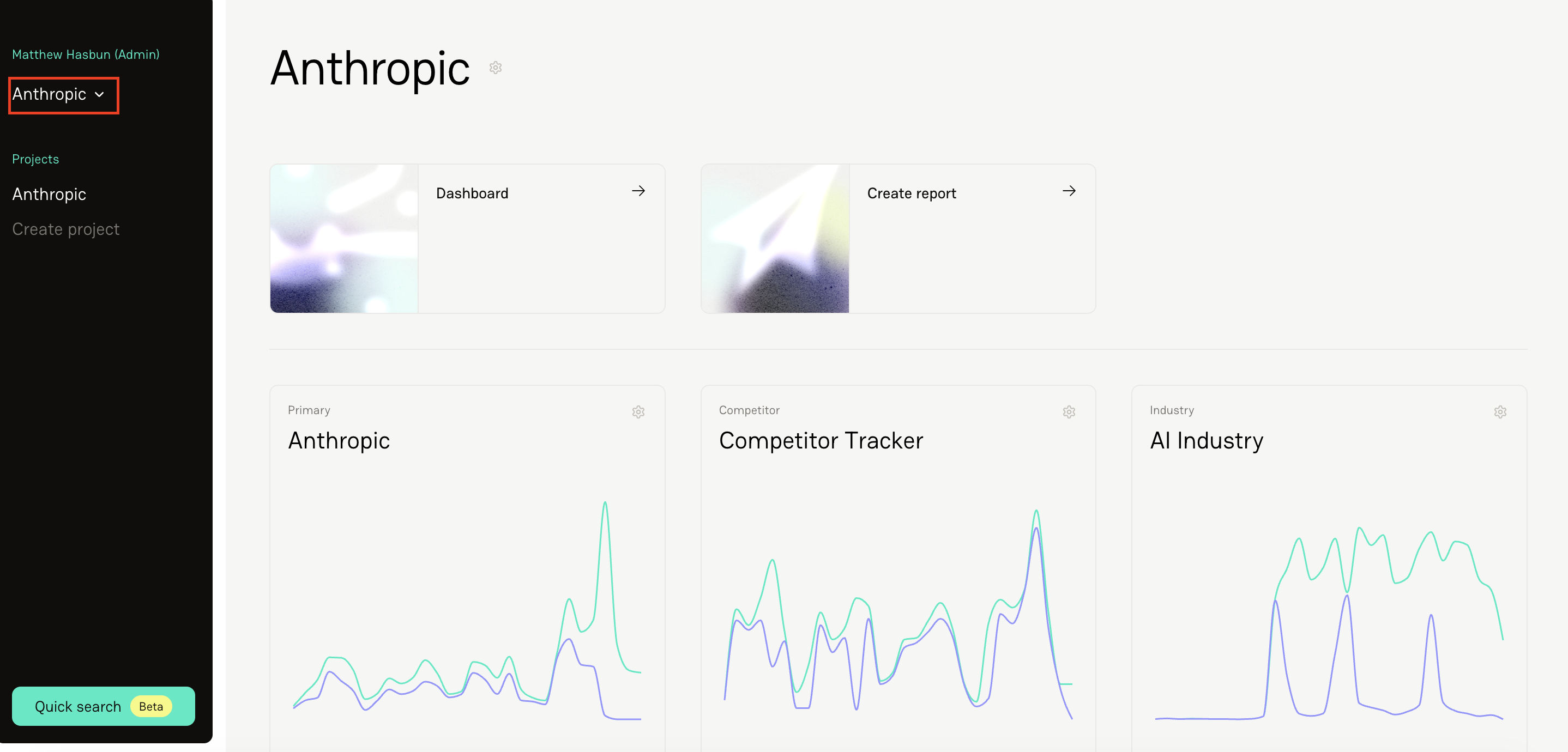
Head to your Team in the left-hand sidebar.
Click the down caret next to the team name.
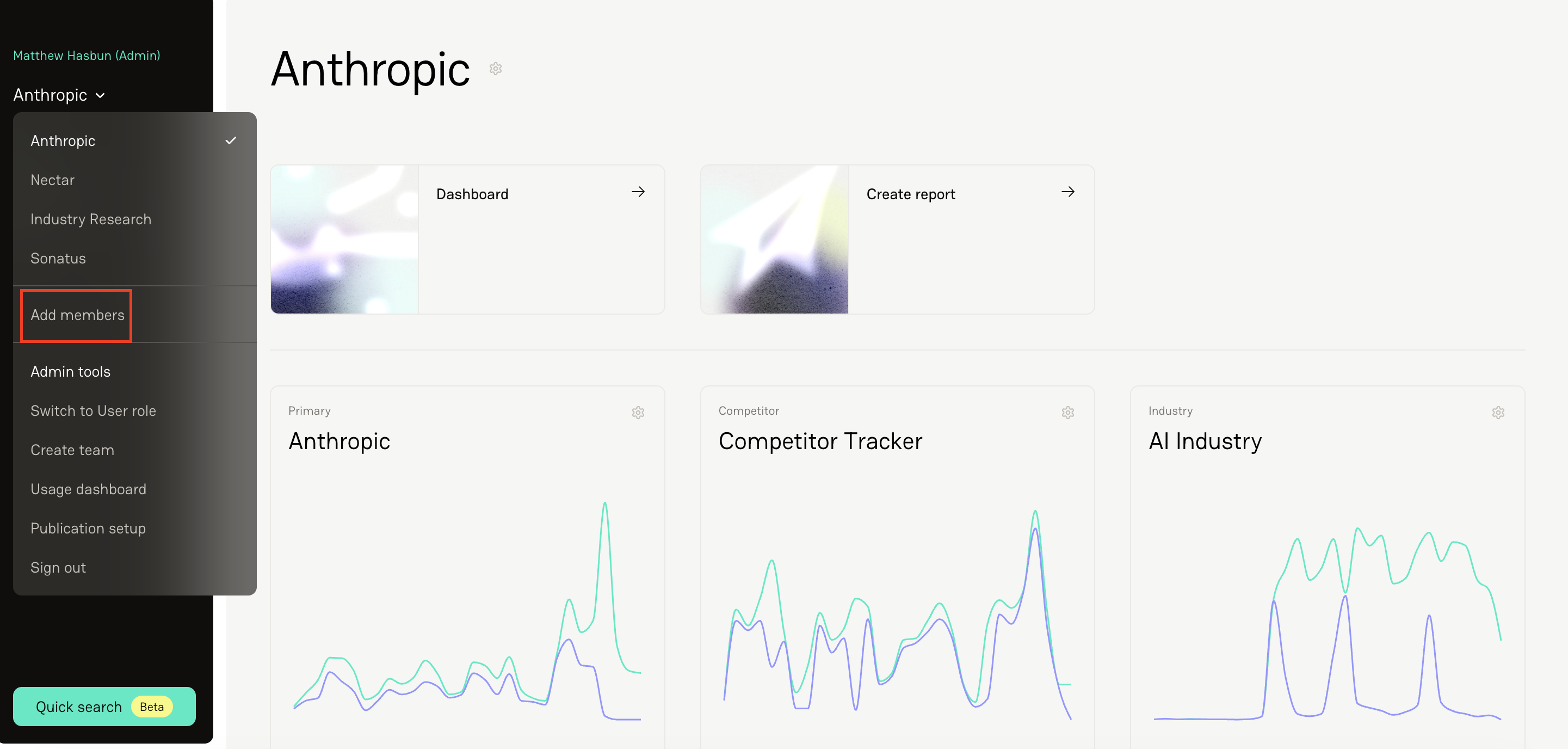
Select Add Members.
In the member management view, click Add Member.
Enter the new member’s email address.
Click Add Member to send the invitation.
What happens next:
The new member will receive an email invitation to join Delve.
They’ll click the link in the email to create their account.
They can sign up using:
The email address that was invited, or
Google sign-in (as long as it matches the invited email).
Once they complete sign-up, they’ll automatically have access to the team and its associated projects.
Quick tip: If they don’t see the invite right away, have them check their spam folder - it occasionally lands there.
How to Remove a Team Member
Go to your Team in the sidebar.
Click the down caret next to the team name.
Select Add Members to open the full member list.
Find the person you’d like to remove.
Click Remove next to their name.
That’s it! Once removed, they’ll no longer have access to the team or its projects.
FAQs
1. I added someone, but they didn’t receive the invitation email. What should they do?
First, have them check their spam or junk folder. If it’s not there, confirm you entered the correct email address. If needed, remove the pending invite and resend it.
2. The invite link isn’t working - now what?
Invite links expire after 10 minutes. The easiest fix is to remove the member and send a fresh invitation directly to their email.
3. They signed up, but don’t see the team or project.
Make sure they used the same email address that was invited. If they signed up with Google, the Google account must match the invited email exactly.
4. Can someone be on multiple projects?
Yes! Access is managed at the team level, and teams can contain multiple projects. As long as they’re on the team, they’ll have visibility into the team’s associated projects.
5. If I remove someone, can I add them back later?
Absolutely. Just follow the same “Add Member” steps again. They’ll receive a new invitation and regain access once they accept.